
Roles
The roles section allows you to create roles with predefined permissions which can be applied to users.
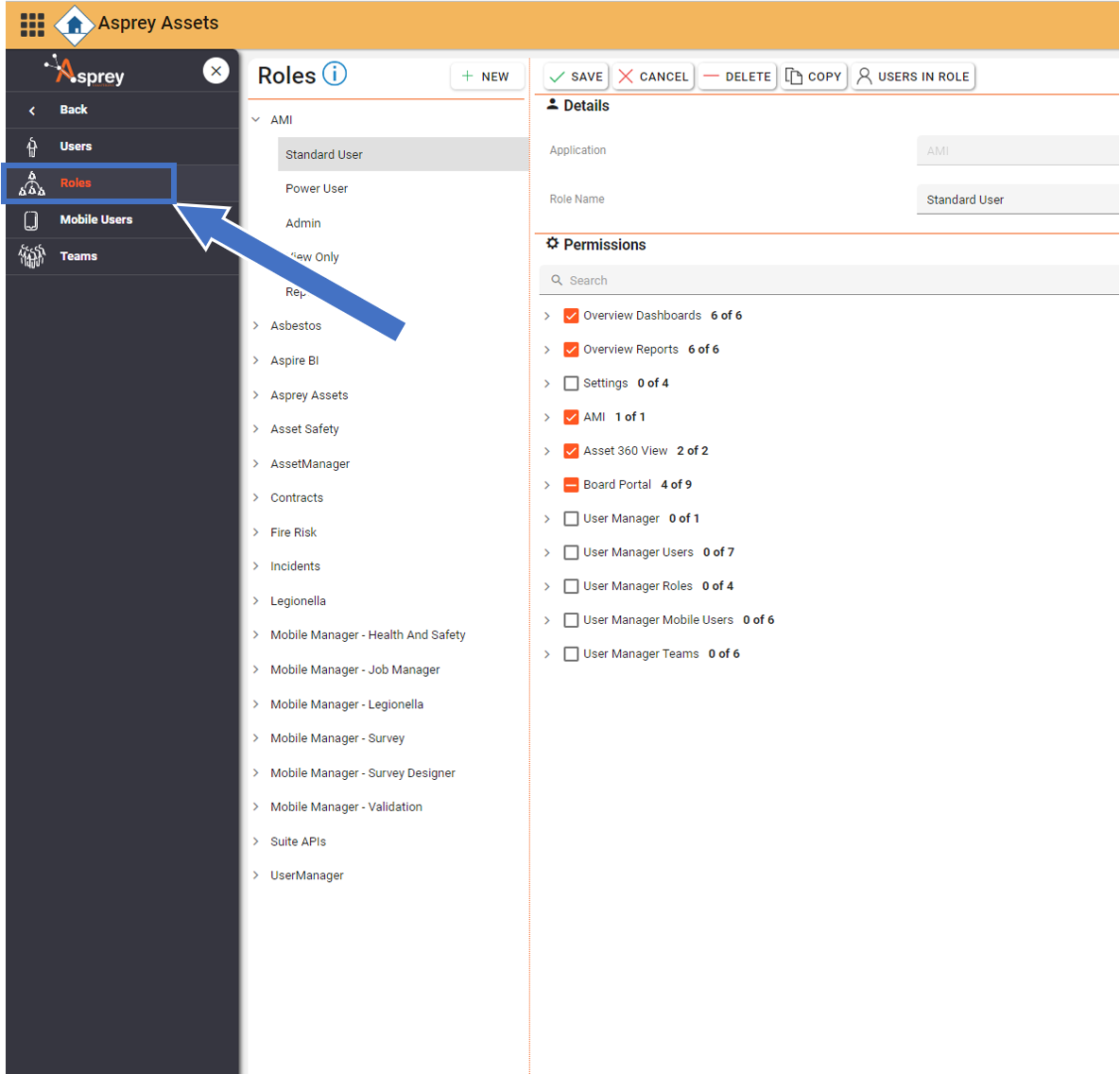

Creating roles is a faster way to administer users permissions to predefined access.
Adding a new role
To add a new role click the “New Button”
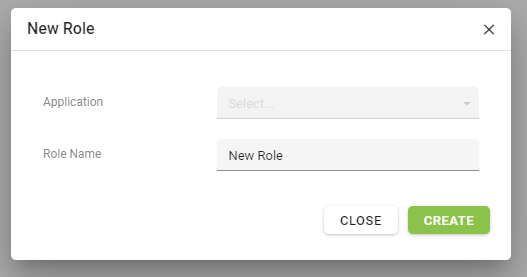
The following dialogue box will appear. Use the drop-down options to select the application and then enter the name of the role.
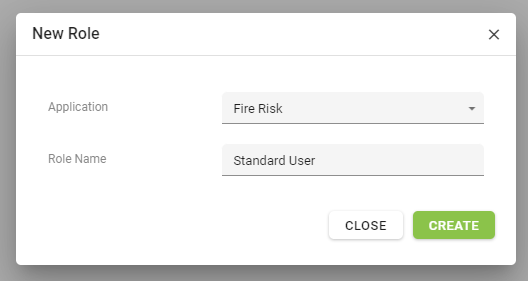
Once you have entered these details, click “create” and the new role will appear in the roles under the application selected.
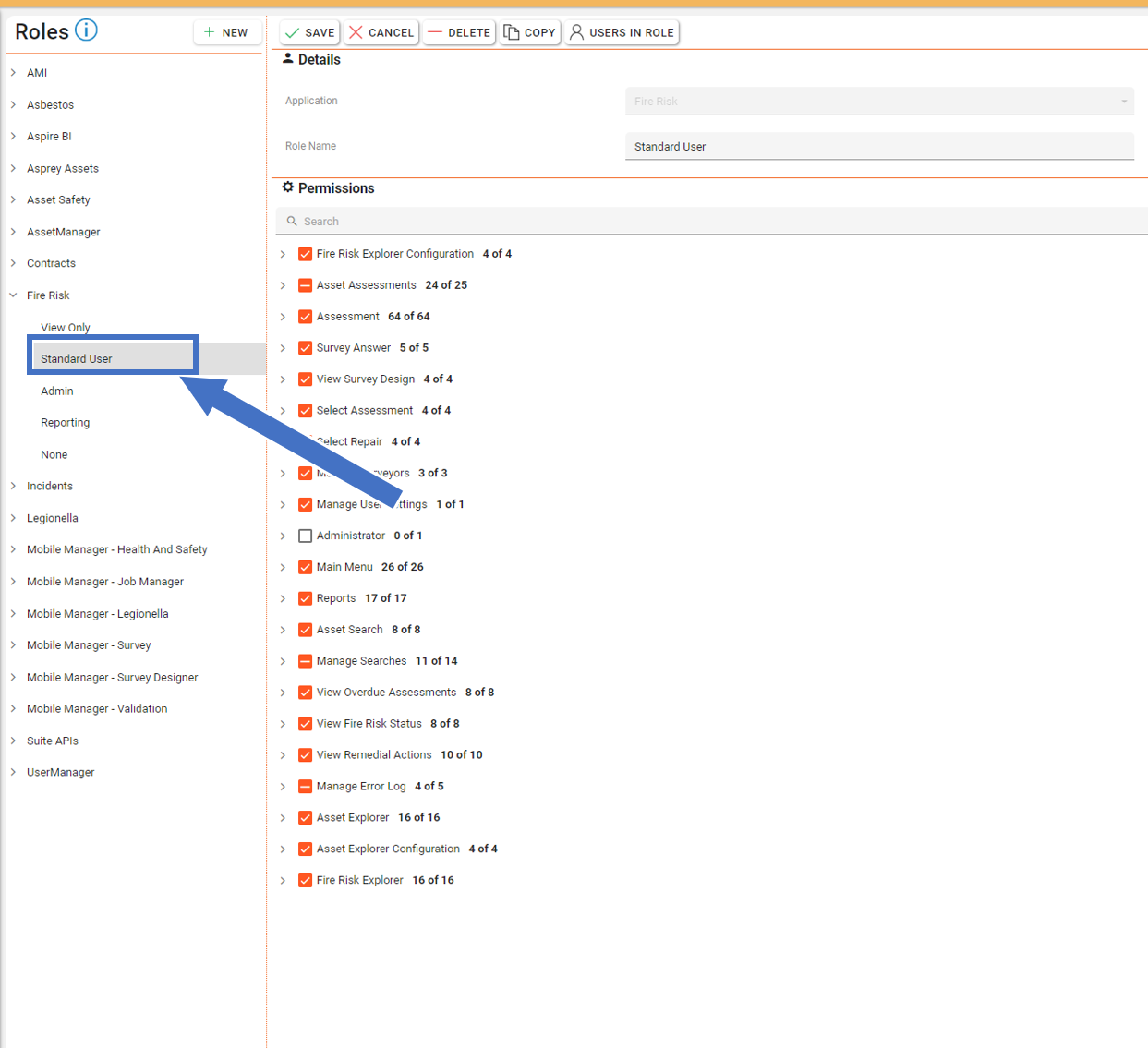
To add the permissions to the newly created role, tick the permissions required for that role in the Permissions section of the page. Once all permissions required are selected, click the “save button”.
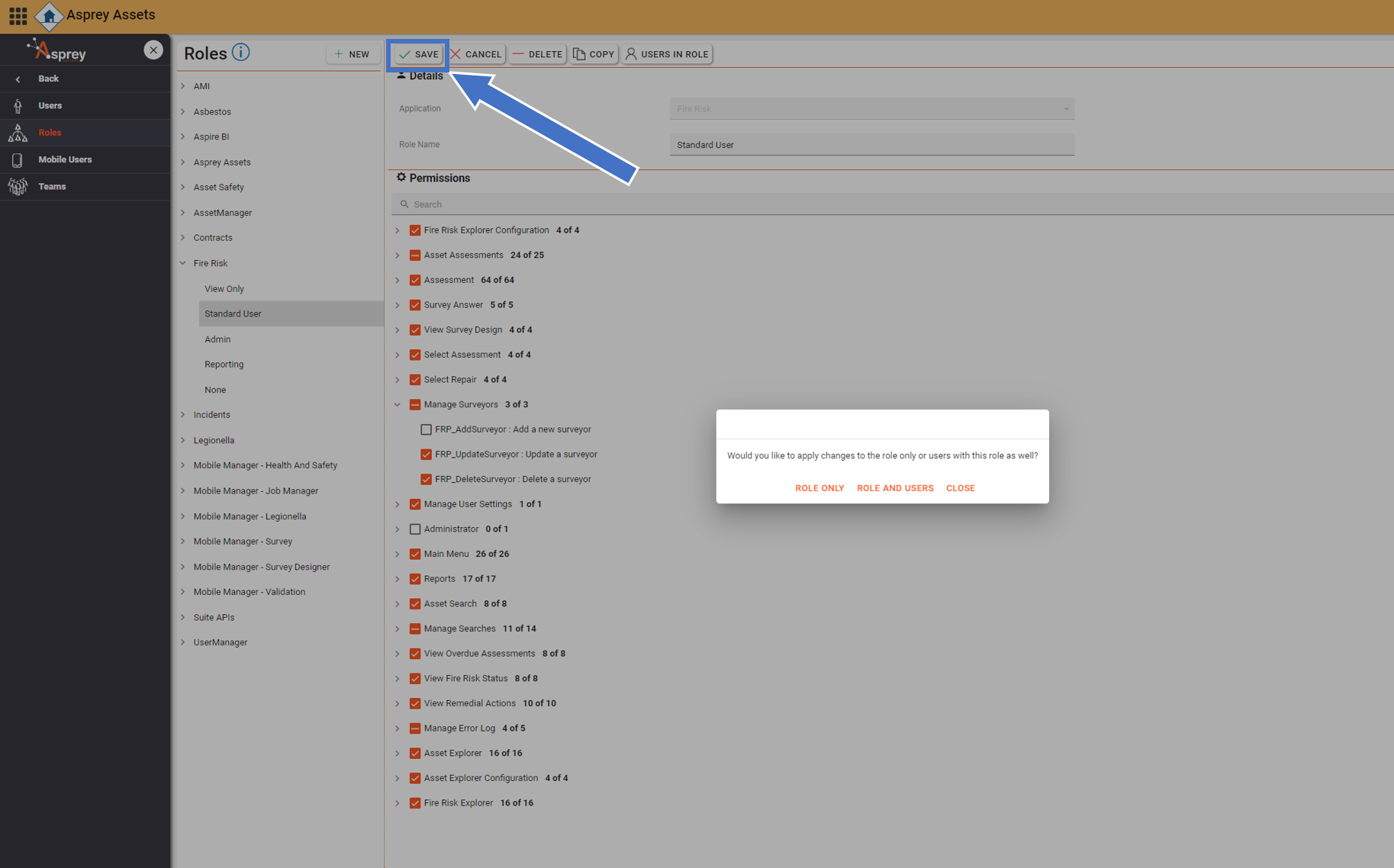
When you click save, the following options will appear. Selecting the “role only” will only update the role and future users assigned to that role. Existing users assigned will retain their previous permissions. Selecting the “role and users” will update both the role and all existing users with that role.
Select the response which is appropriate to your needs and click Save.

You have now successfully created a new role.
Editing an existing role
To edit an existing role, select the required role from the list on the left-hand side. This will then load the role on the right-hand side of the screen with the permissions associated with that role.
You cannot rename a role once it has been created.
Once loaded, tick the permissions which are to be added and untick those which are to be removed. Once complete, click “Save” at the top.
When you click save, the following options will appear. Selecting the “Apply Changes to role only” will only update the role and future users assigned to that role. Existing users assigned will retain their previous permissions. Selecting the “Apply changes to the role and users with this role” will update both the role and all existing users with that role.
Select the response which is appropriate to your needs and click Save.
You have successfully edited an existing role’s permissions
Copy a role
To copy an existing role, use the “copy” button.
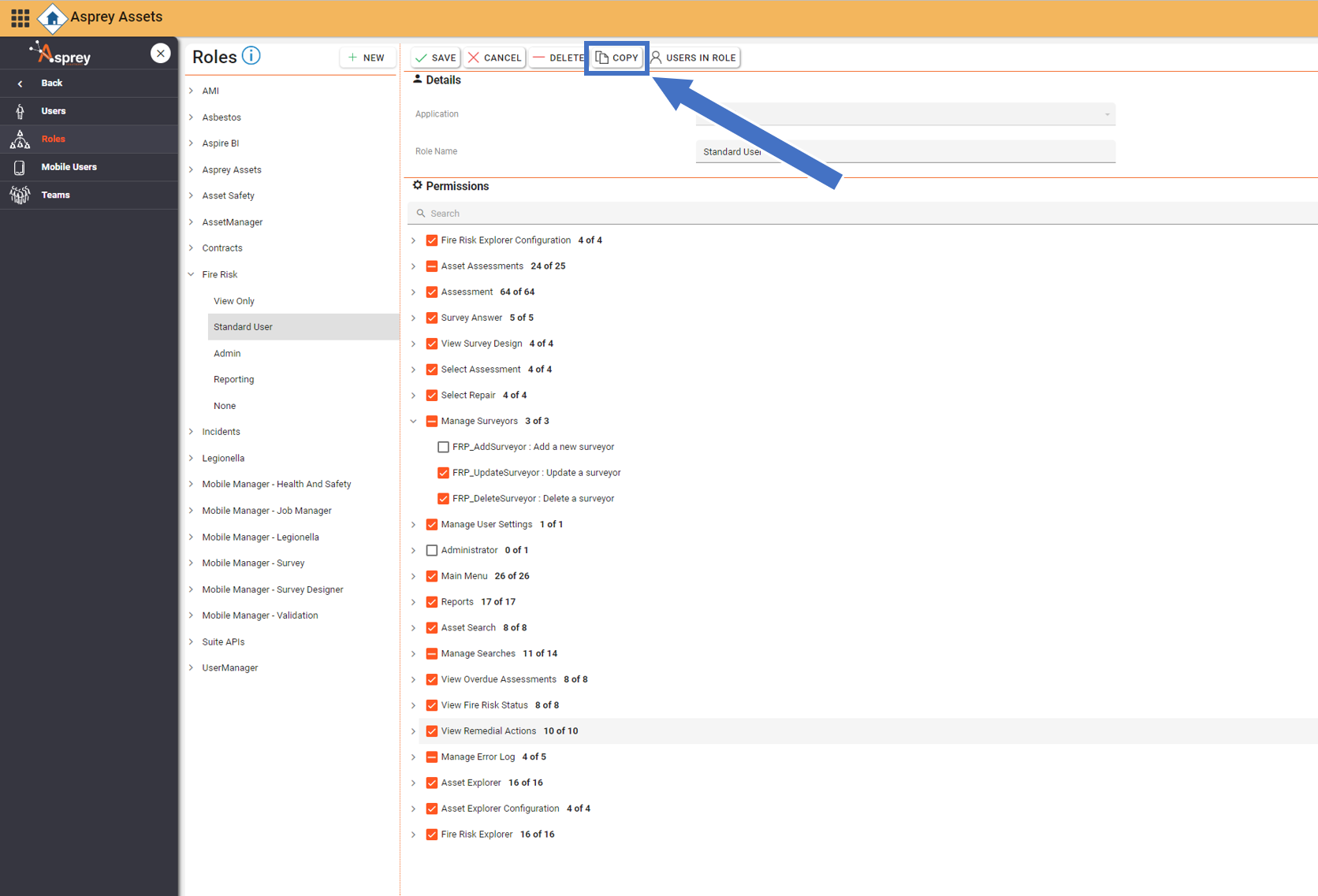
This will copy the existing role and allow you to make some changes to the permissions without affecting the original role. You cannot copy a role from one application to another as the underlying permissions are different. Add the new name of the role to the dialogue box and click create.
Delete a role
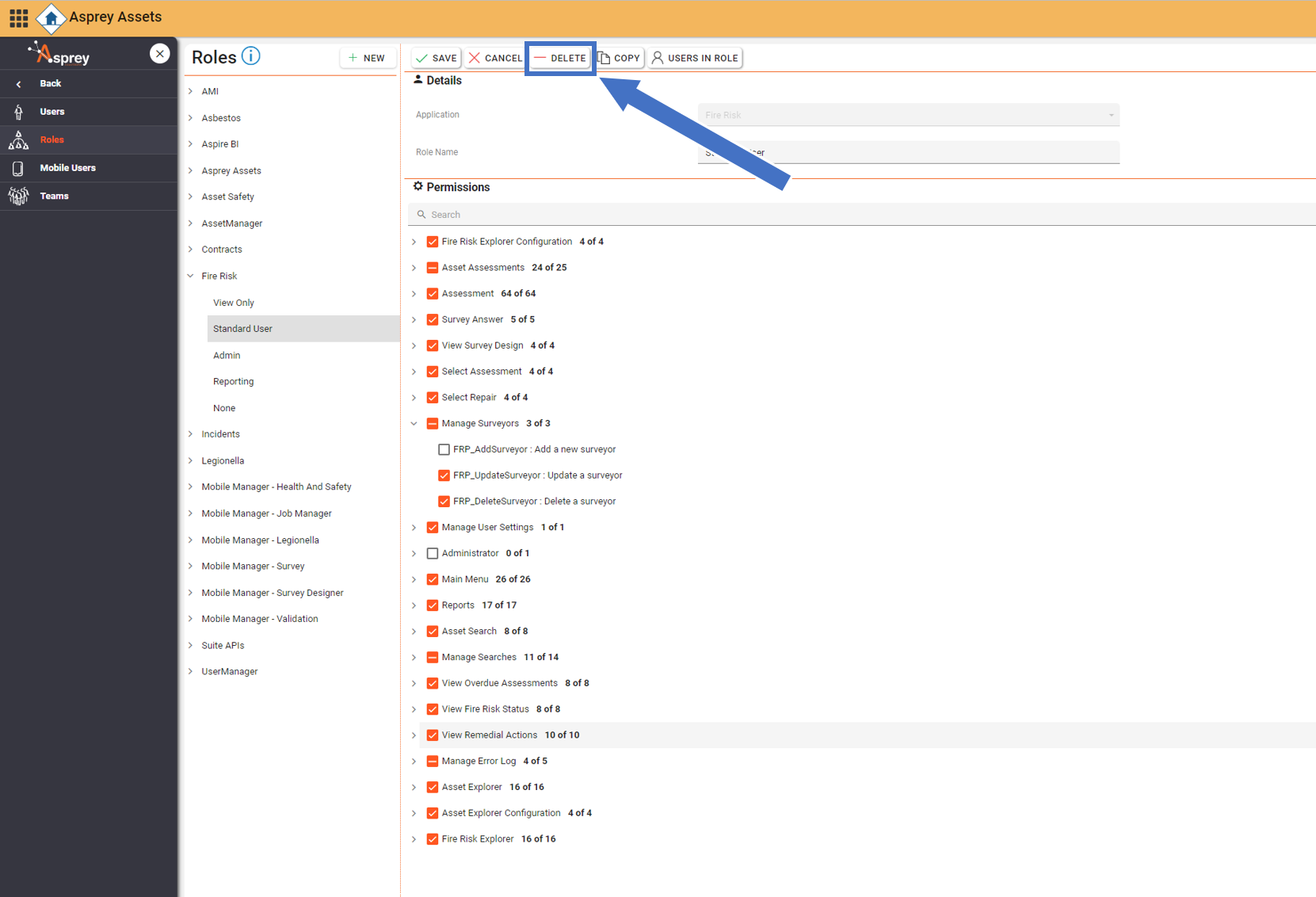
To delete a role, select the role from the left-hand side and click the delete button.
A confirmation dialogue box will appear and you can choose to delete the role without affecting any users with that role or to update the permissions of all users with that role assigned.
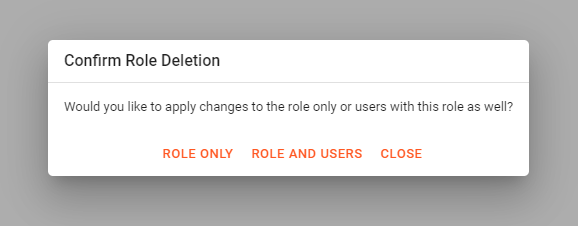
Select the appropriate response and click “Delete”. This will delete the role from the user manager.
You have successfully deleted a role.