
Asbestos Property 360
The Asbestos Asset 360 property view is a specially designed property overview for the Asbestos product within Asprey. Wherever the magnifying glass is shown next to a UPRN within the asbestos product, this page can be accessed.
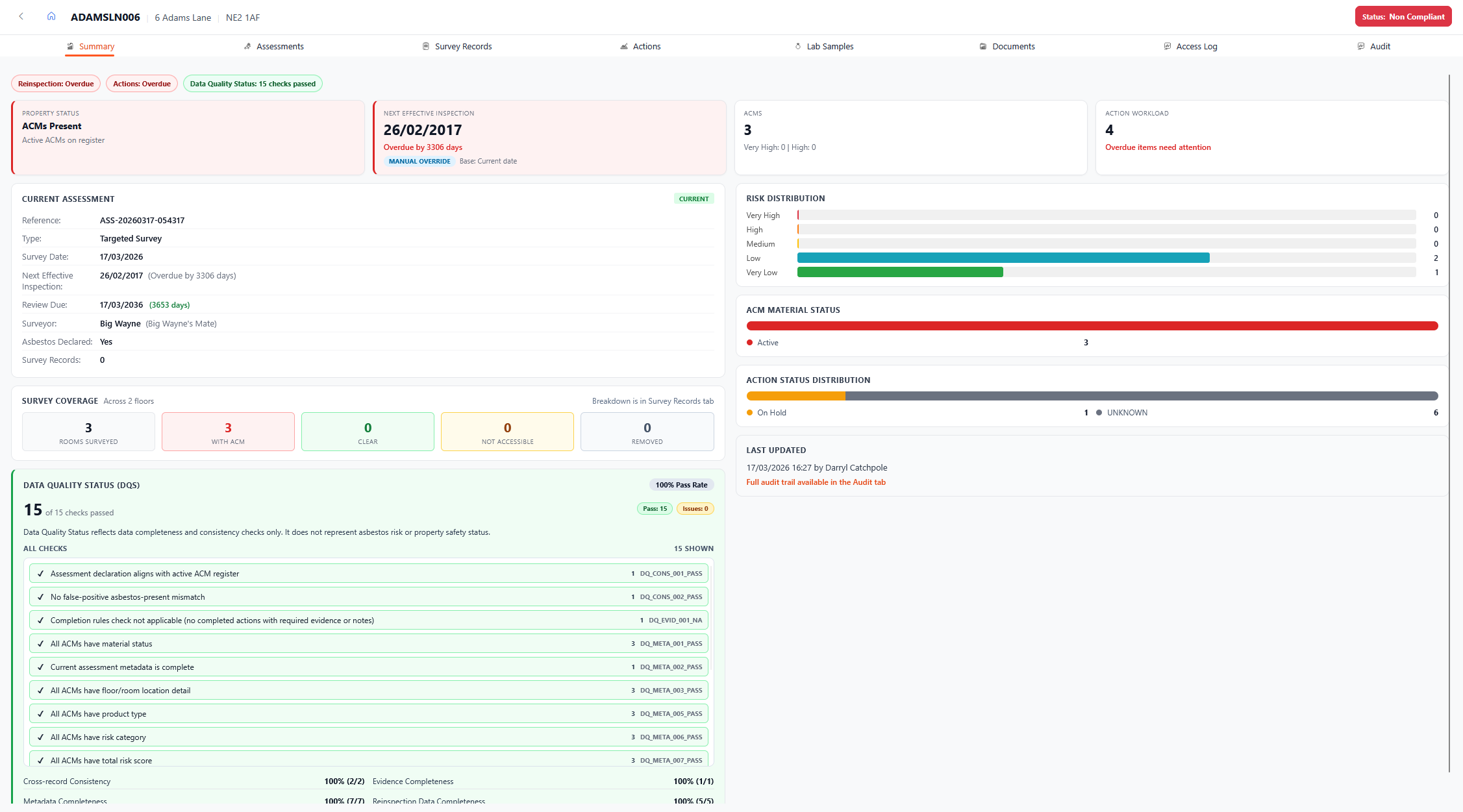
Asbestos Asset Overview Summary
There are multiple tabs present in the Asbestos 360 overview page, all providing different information pertinent to Asbestos management.
The following tabs are available within the overview:
Summary
The summary page gives an overview of the Asbestos position for the selected asset. The overall status of the asset is shown in the top right-hand corner of the screen.
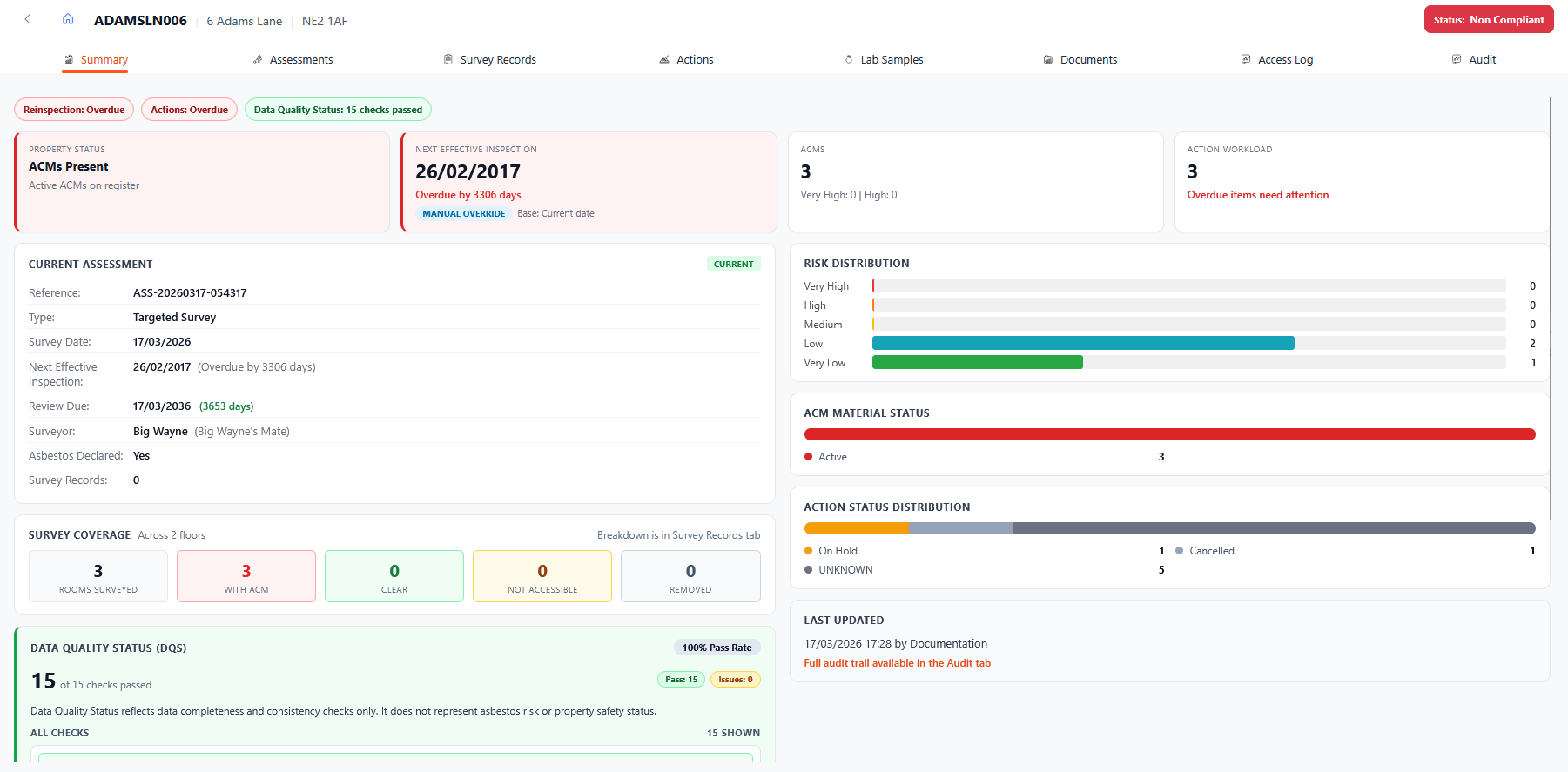
Summary view of the Asbestos 360 view
Assessments
The assessments page of the Asbestos 360 view provides details of the assessments associated with the selected asset.
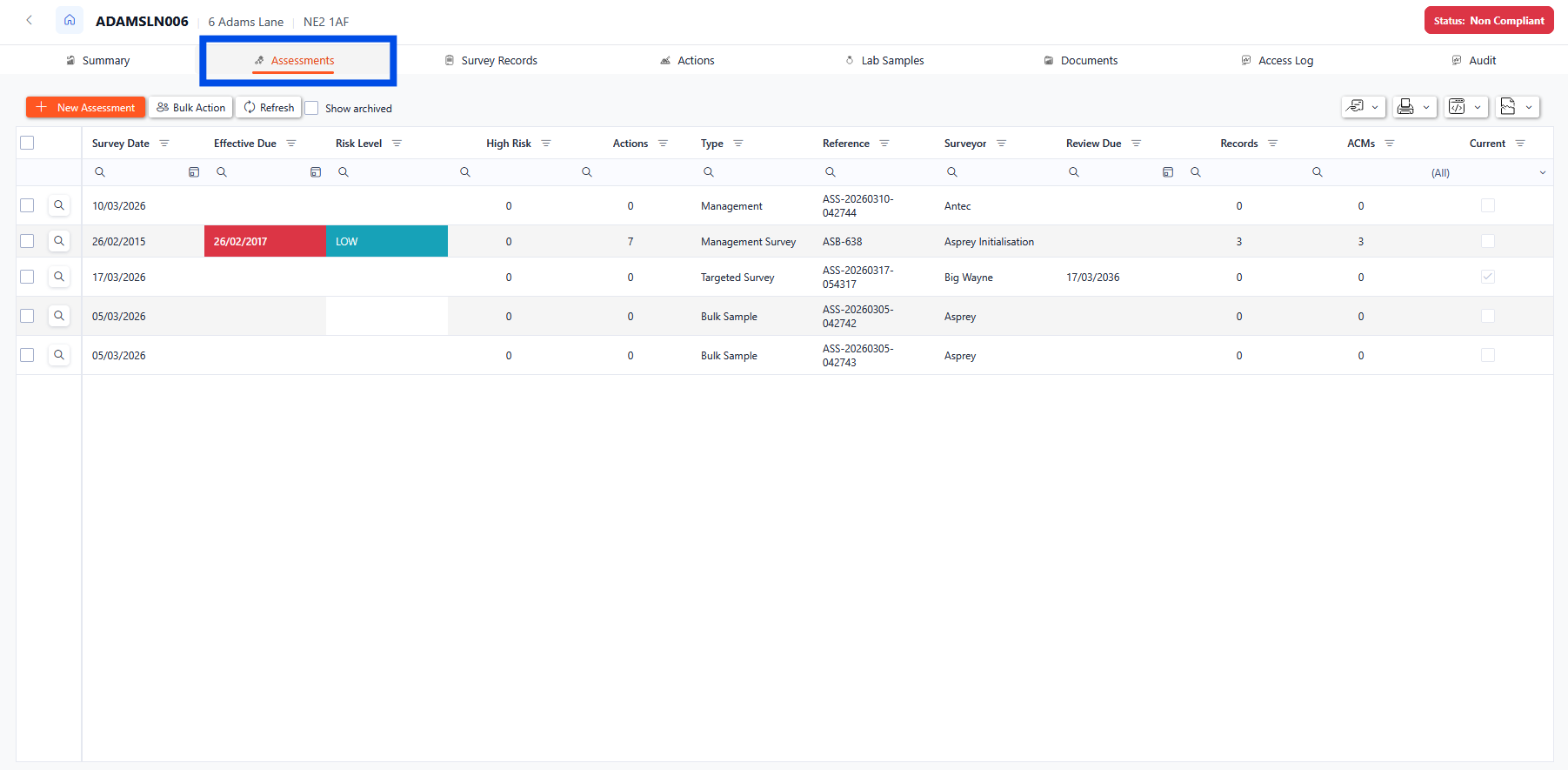
Asbestos 360 Assessments section
Assessment Drill-through
Each assessment is shown in the grid with summary information about each assessment. To drill through into the individual assessment, click the magnifying glass next to the desired record.
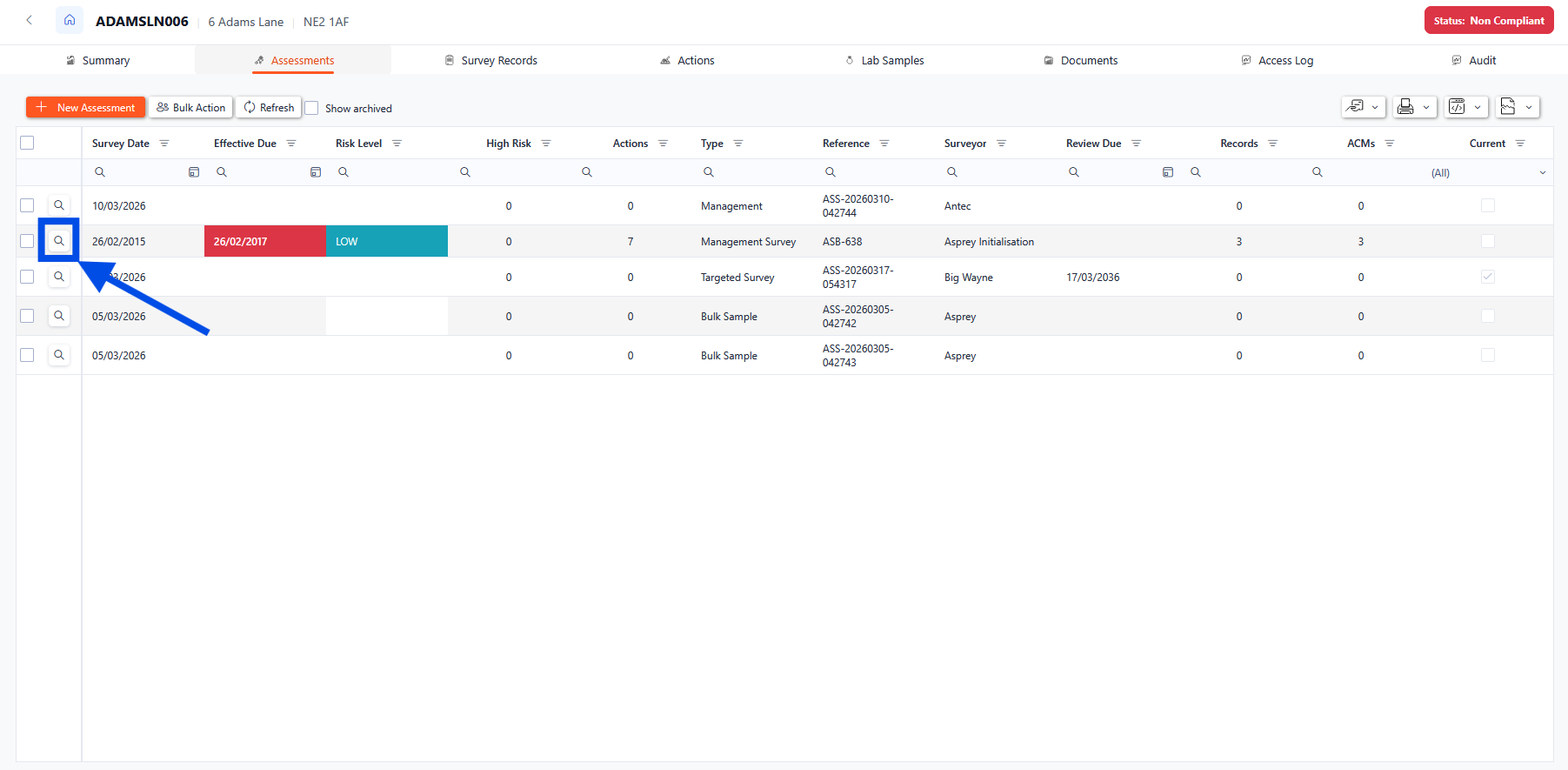
Assessments section drill-through magnifying glass
Assessment Details
When the magnifying glass is selected, a pop-up will appear with the assessment details. The first tab will show all the details for the assessment. From here, details of the assessment can be updated (with relevant permissions enabled).
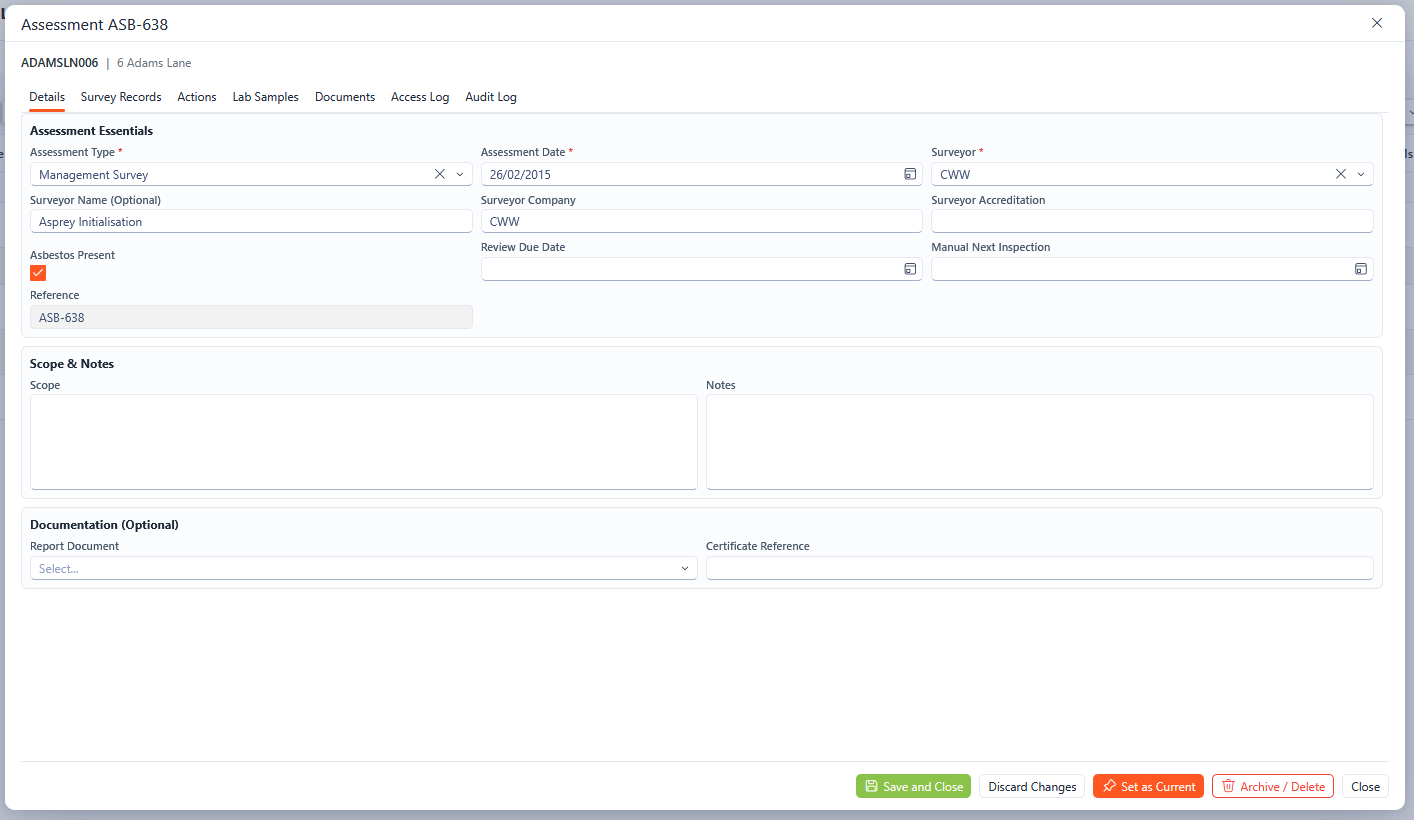
Assessment Details
Any fields marked with an asterisk (*) are mandatory fields and must be completed.
Assessment Survey Records
The Survey Records tab shows the details of all survey records associated with the assessment.
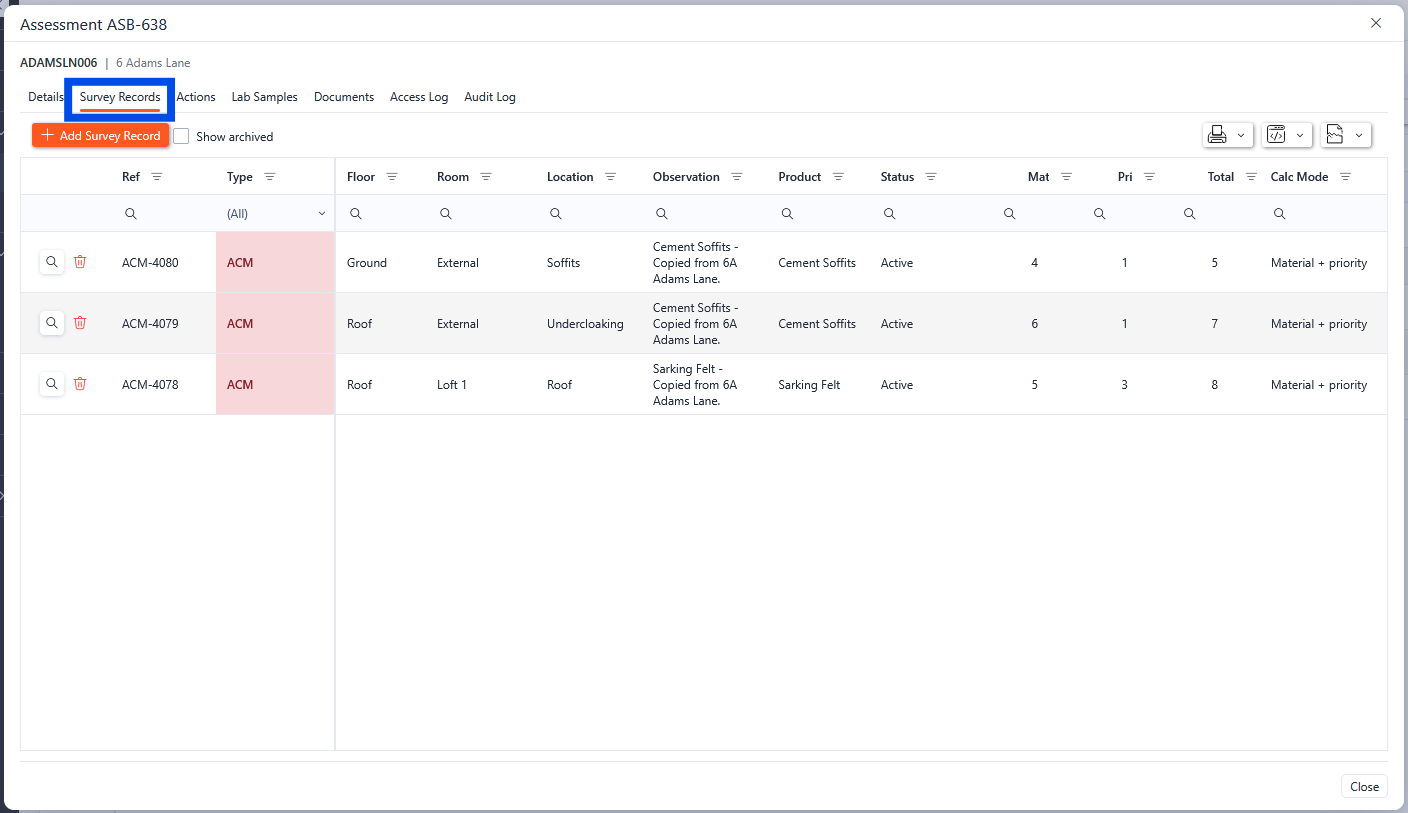
Assessment Survey Records
Any of the survey records can be viewed by clicking the magnifying glass in the required row. This will open up a new pop-up box with the details of the survey record.
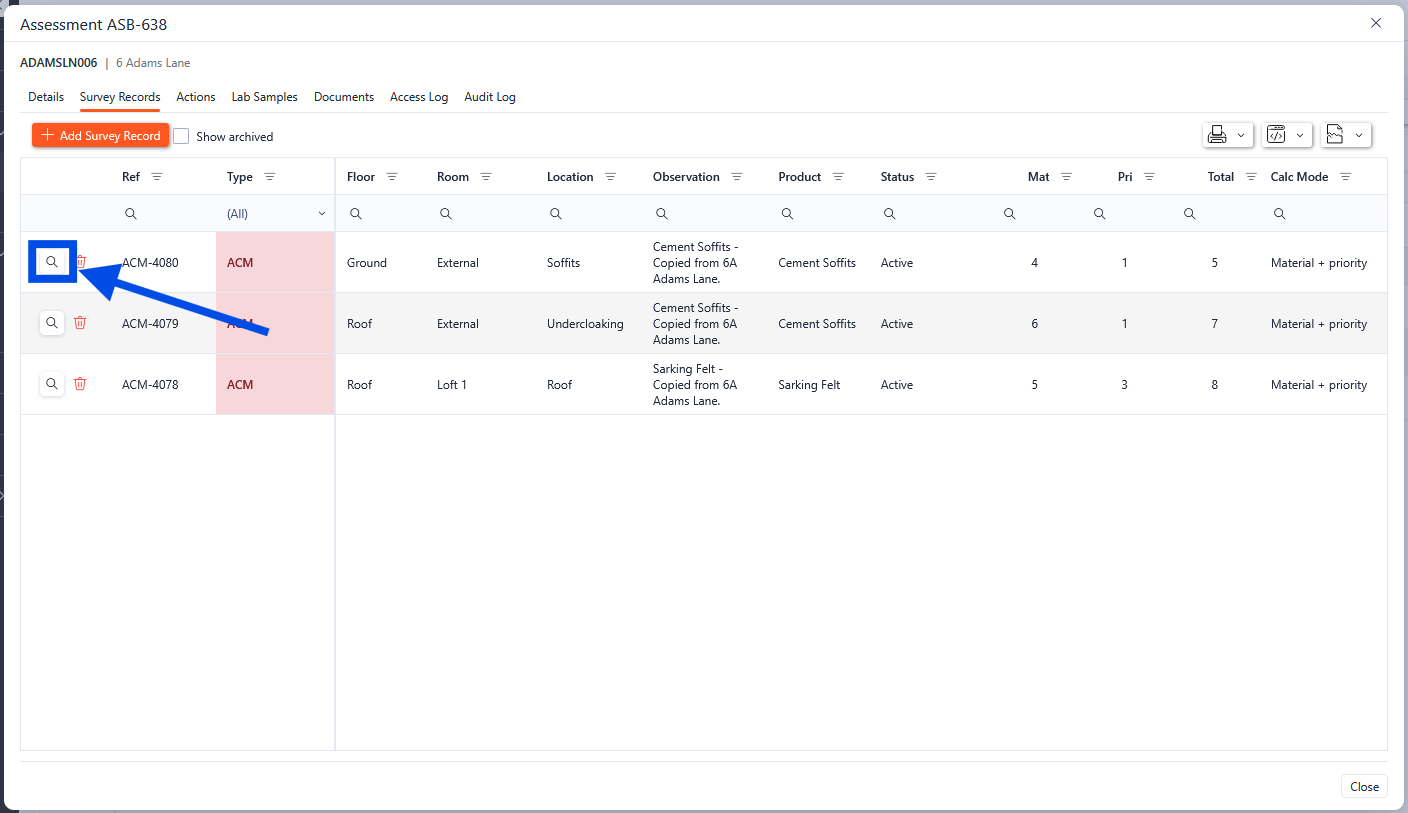
Assessment Survey Records Drill-Through
Assessment Actions
The Actions tab of the assessments section shows all the actions associated with the selected assessment. New actions can also be added from this screen.
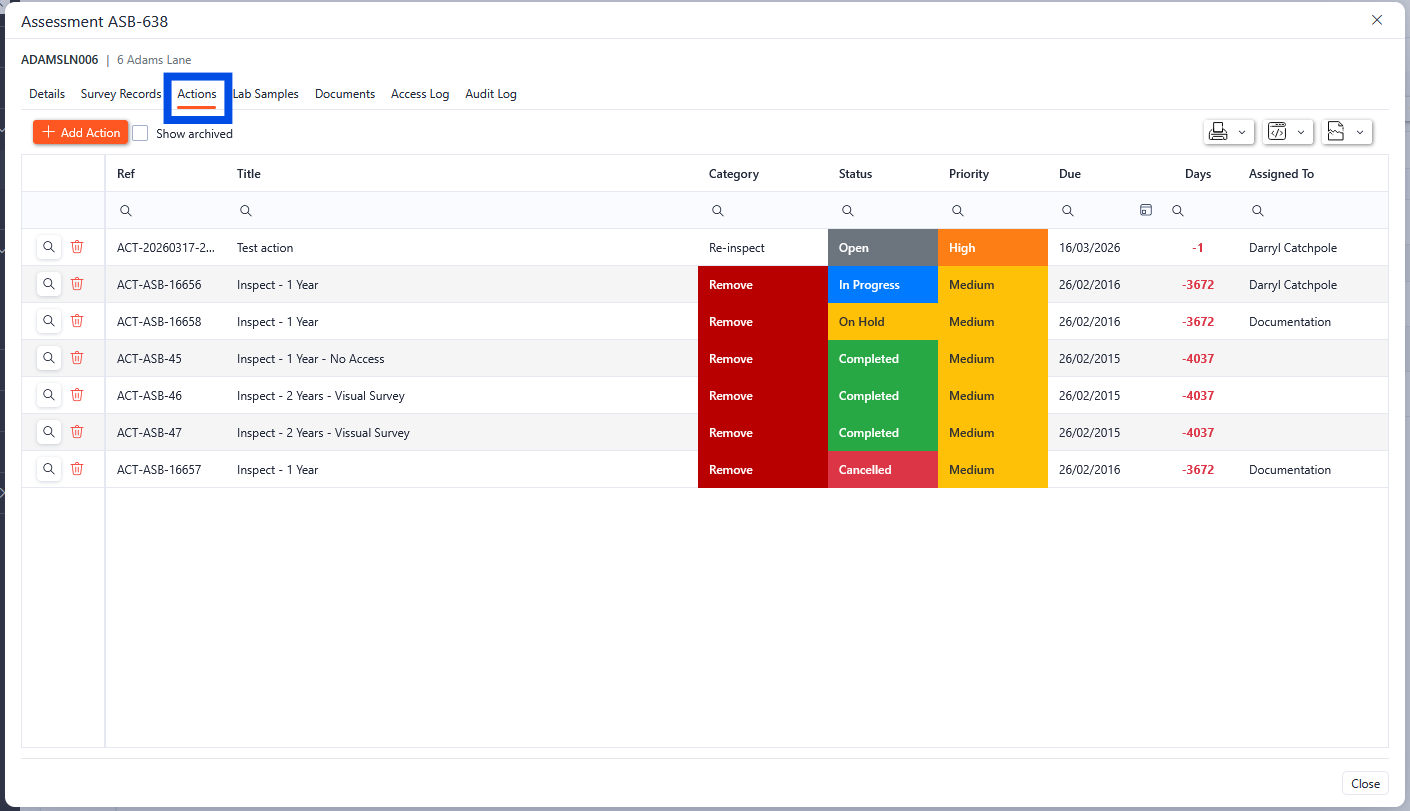
Assessment actions
Any of the Actions can be viewed by clicking the magnifying glass in the required row. This will open up a new pop-up box with the details of the Action.
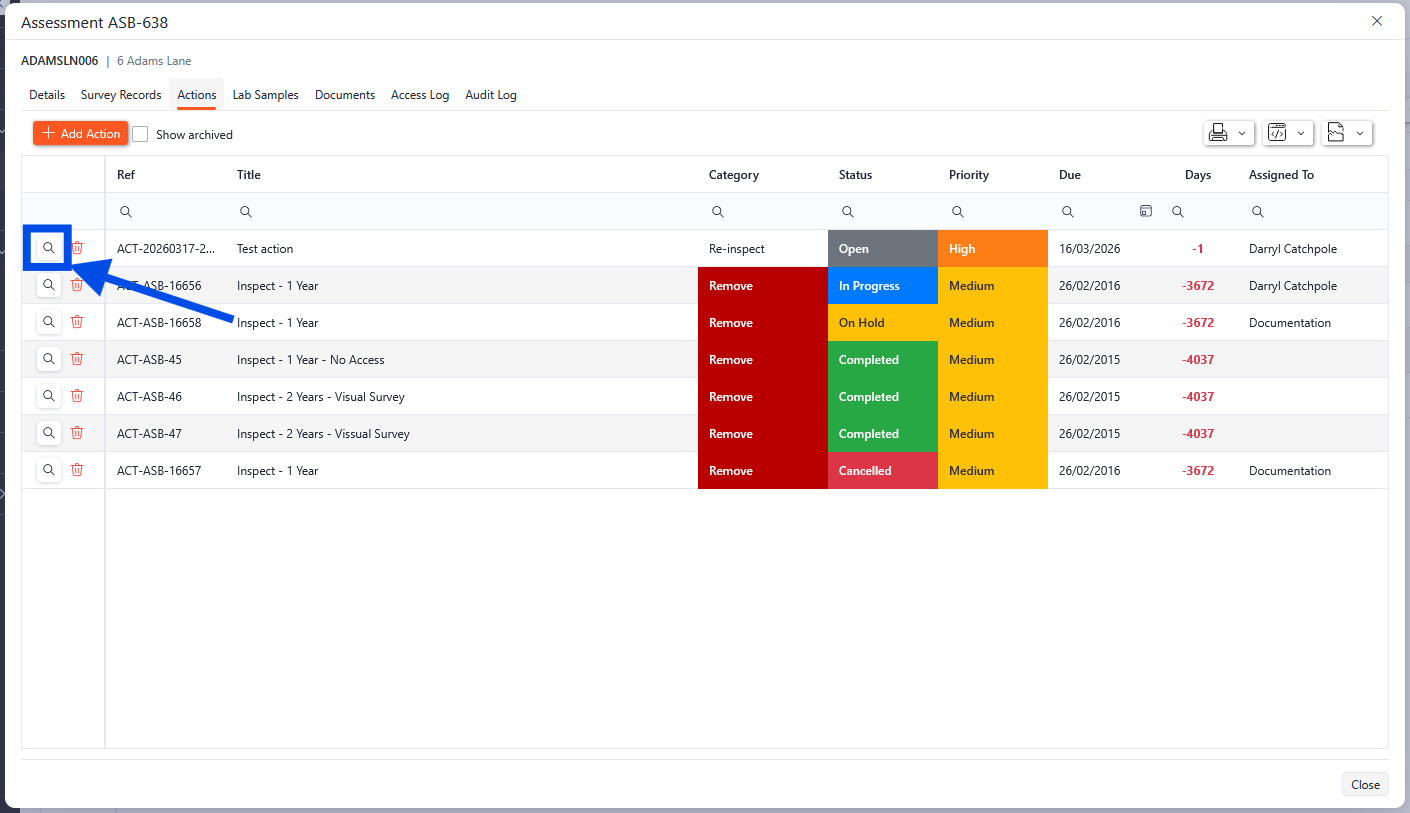
Assessment actions Drill-Through
Assessment Lab Samples
The Lab Samples tab of the assessments section shows all the actions associated with the selected assessment. New Lab Samples can also be added from this screen.
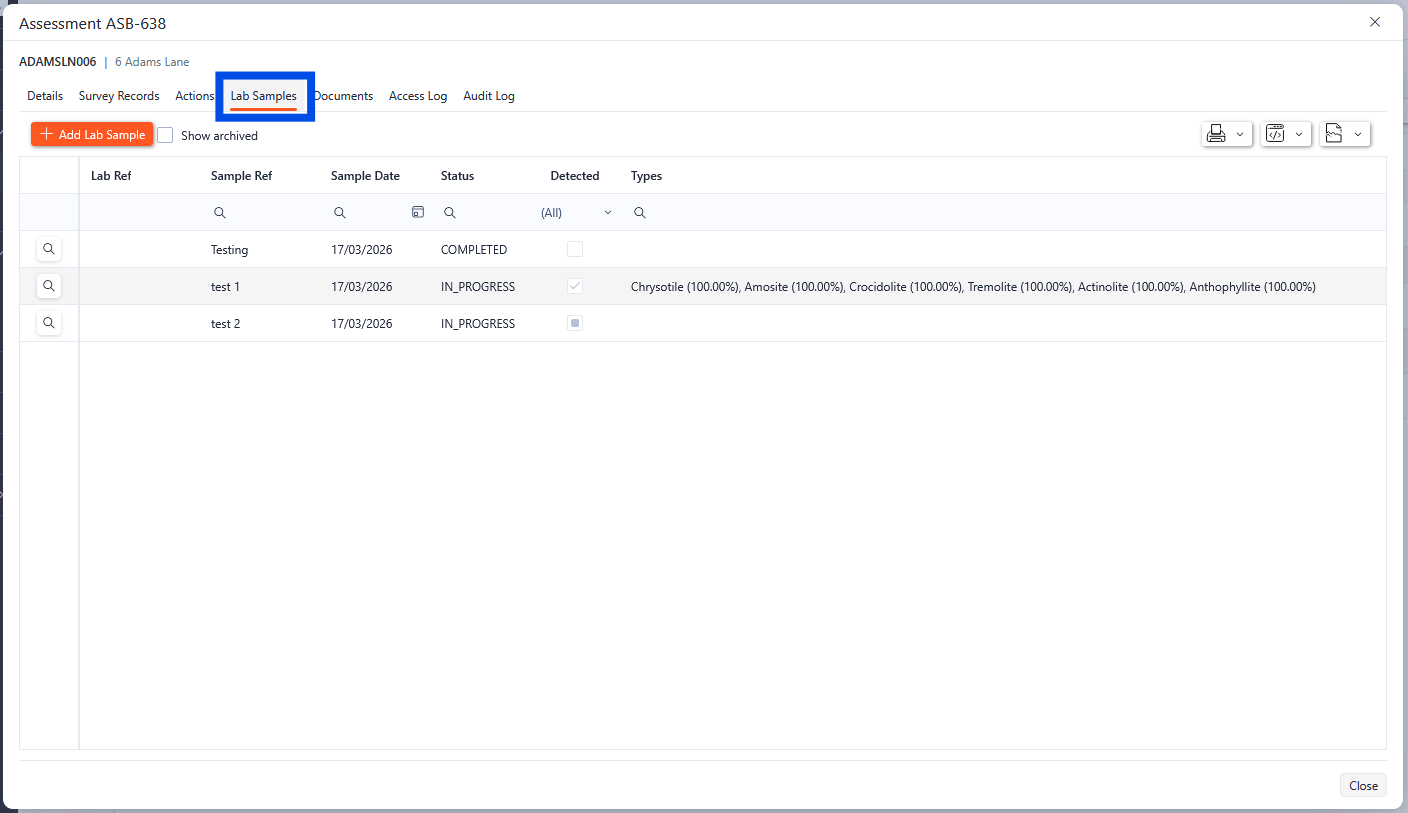
Assessment Lab Samples
Any of the Lab Samples can be viewed by clicking the magnifying glass in the required row. This will open up a new pop-up box with the details of the Lab Samples.
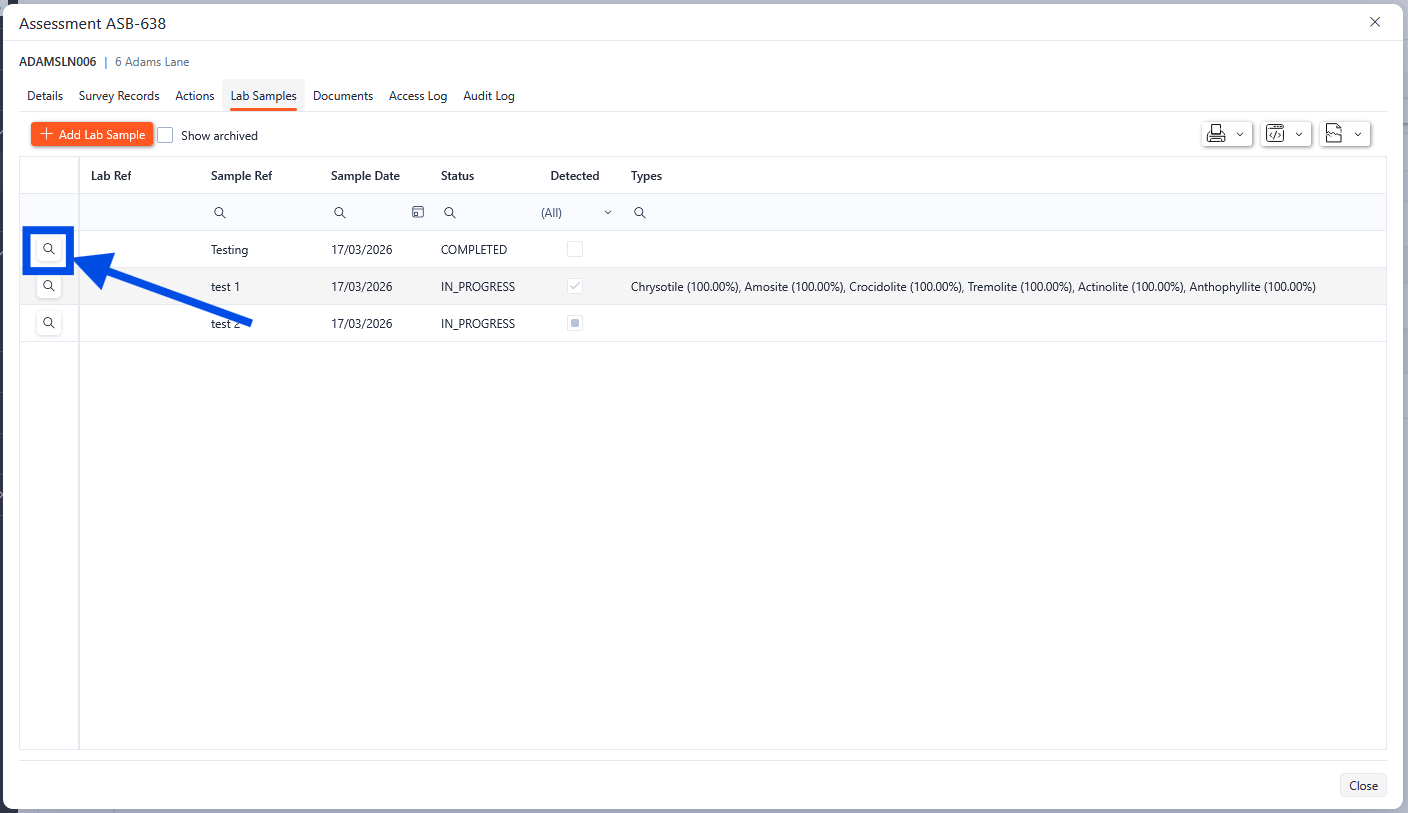
Assessment Lab Samples Drill-Through
Assessment Documents
The documents tab within the assessment shows all the documents associated with the assessment. From here, new documents can be uploaded, and existing documents can be viewed and downloaded.
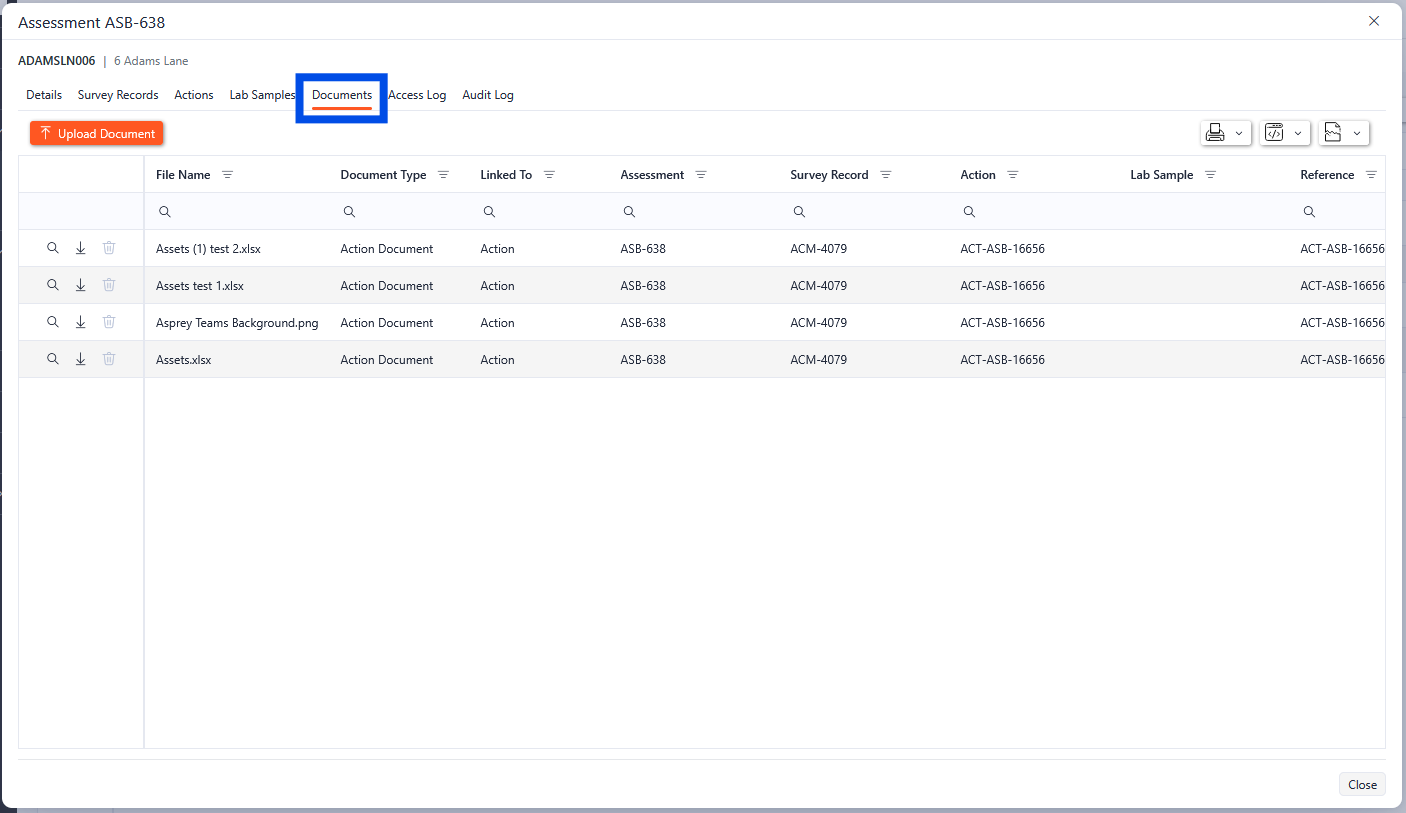
Assessment documents
Assessment Access Log
The access log shows the history of access to the assessment. This shows the date and time, user and type of access.
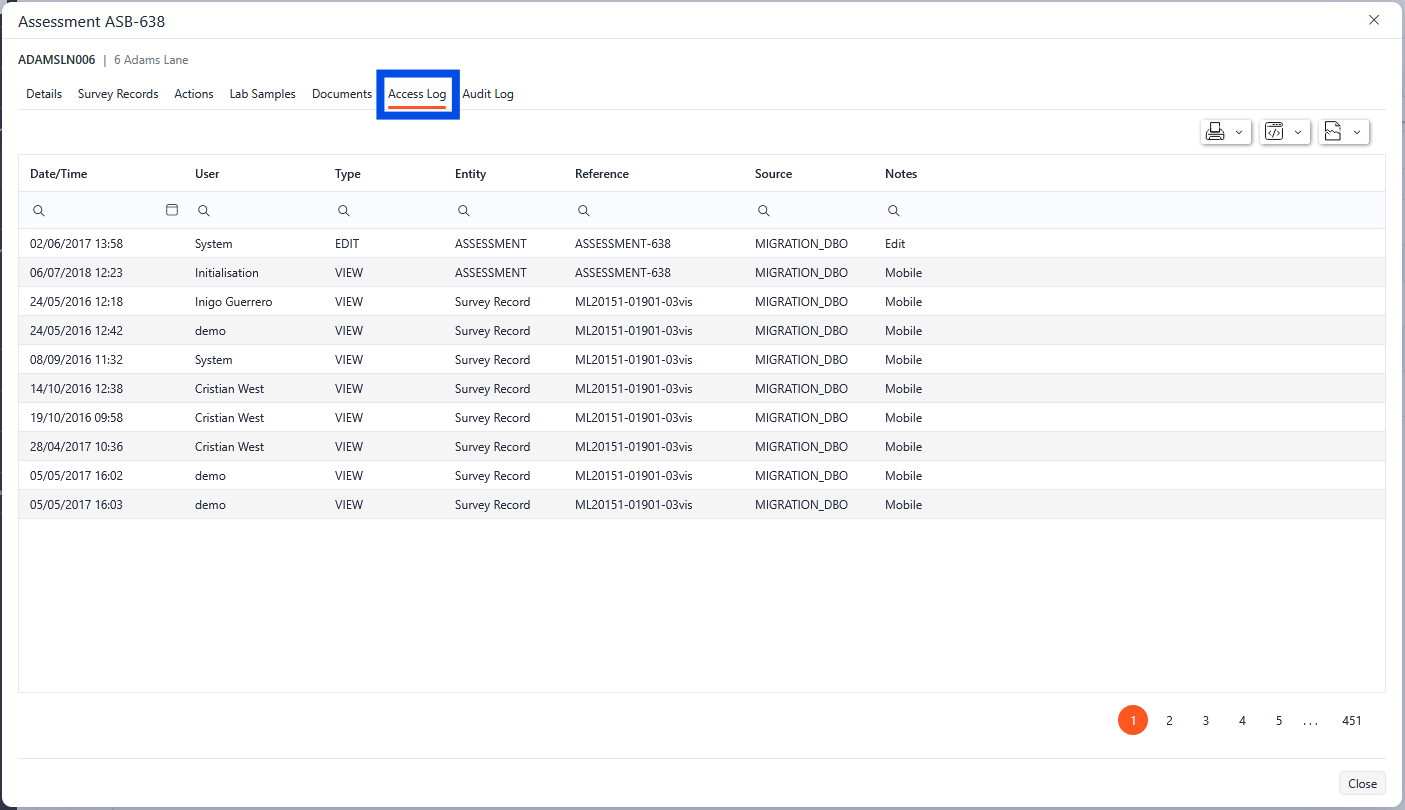
Assessment Access Log
Audit Log
The audit log shows the audit trail for the assessment.
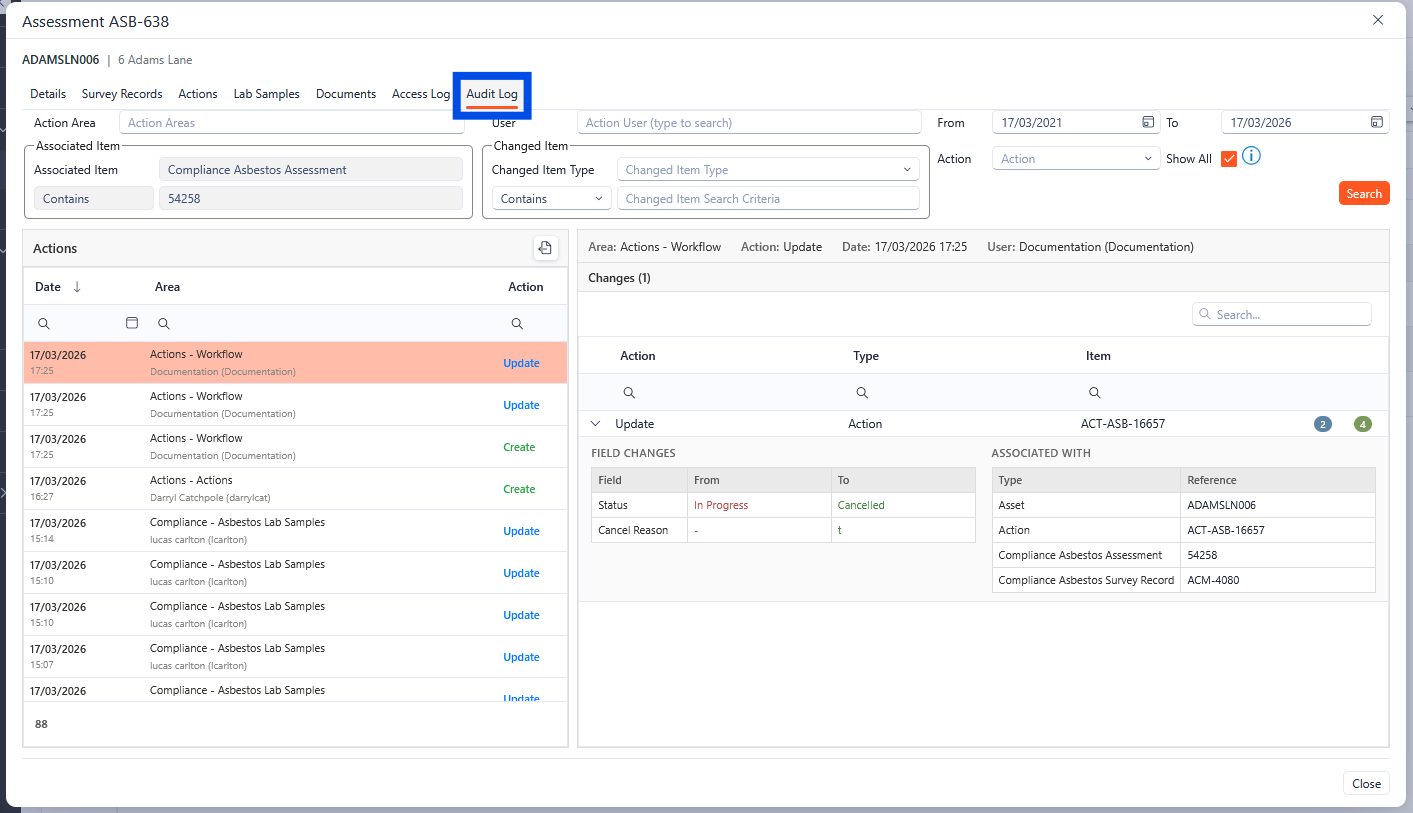
Assessment Audit Log
Adding a new Assessment
To add a new assessment to the selected asset, click the New Assessment button.
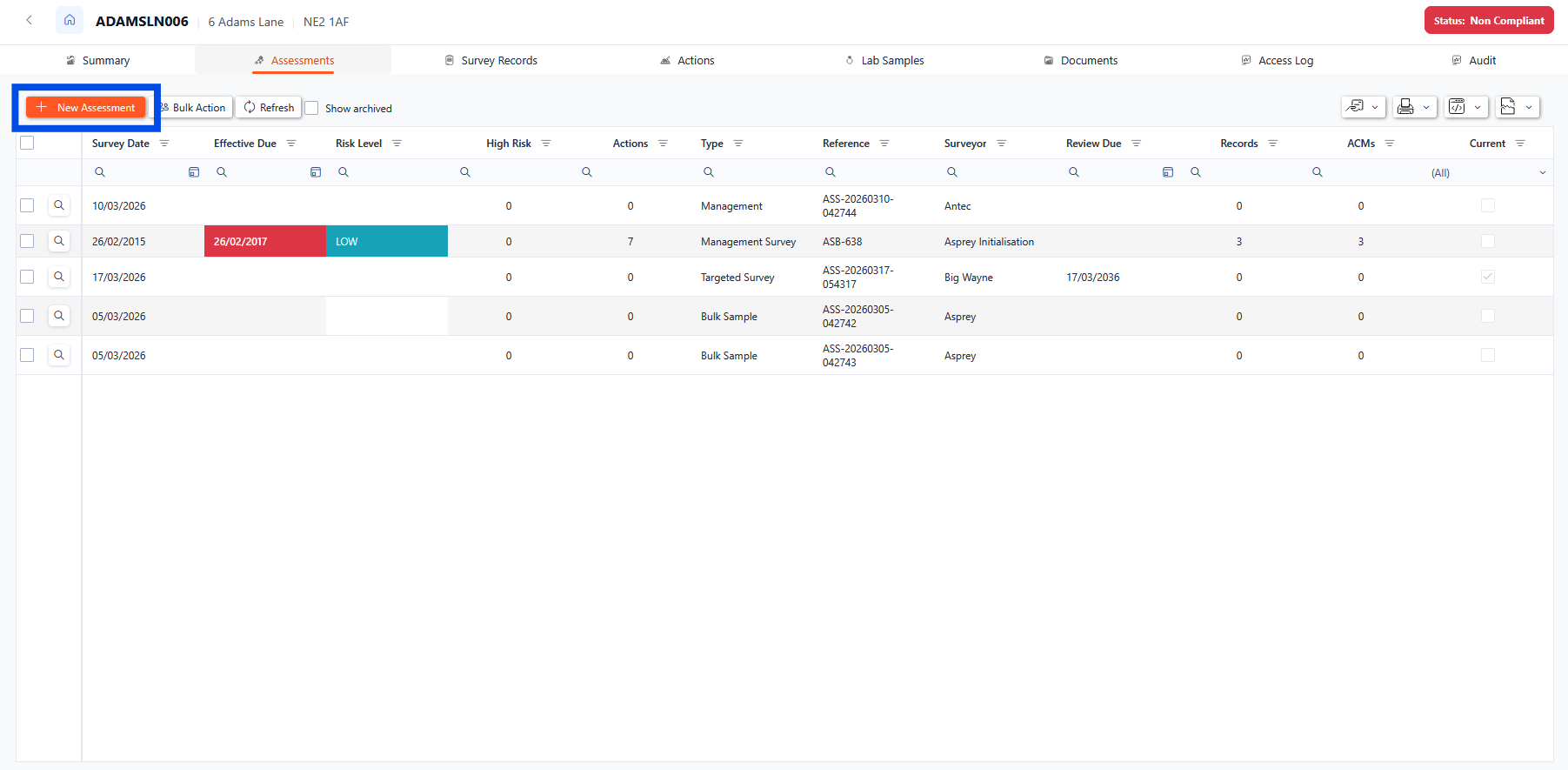
Adding a new assessment
A pop-up box will appear to enter the details of the new assessment.
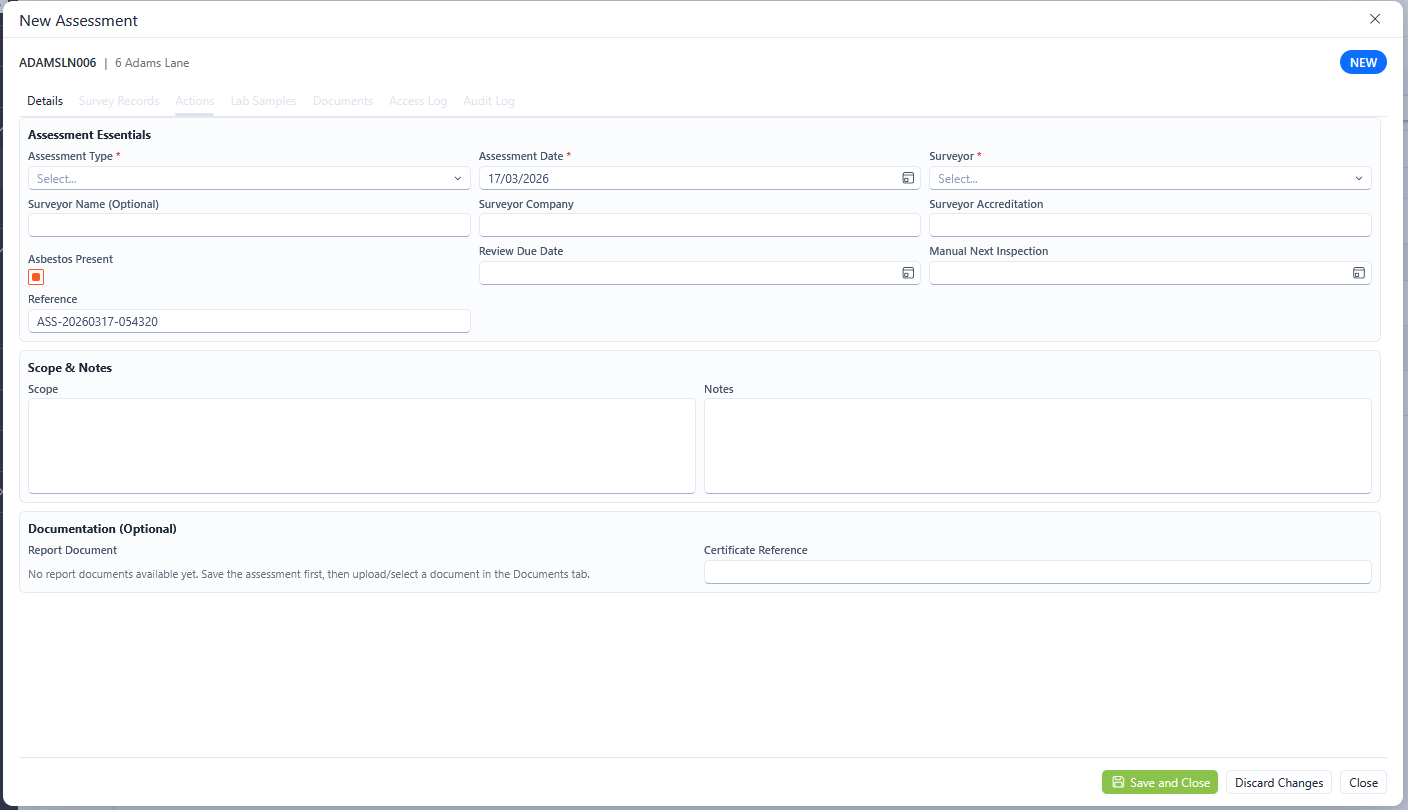
New Assessment
Any fields marked with an asterisk (*) are mandatory fields and must be completed. Once the relevant information has been populated, click the Save and Close button to save the new assessment.
The Reference is auto generated but can be manually updated. The format of the autogenerated reference can be adjusted through the configuration of the Asbestos system.
Survey Records
The Survey Records page of the Asbestos 360 view provides details of the survey records associated with the selected asset.

Asbestos 360 Survey Records
Survey records drill-through
Each Survey Record is shown in the grid with summary information about each survey. To drill through into the individual record, click the magnifying glass next to the desired row.
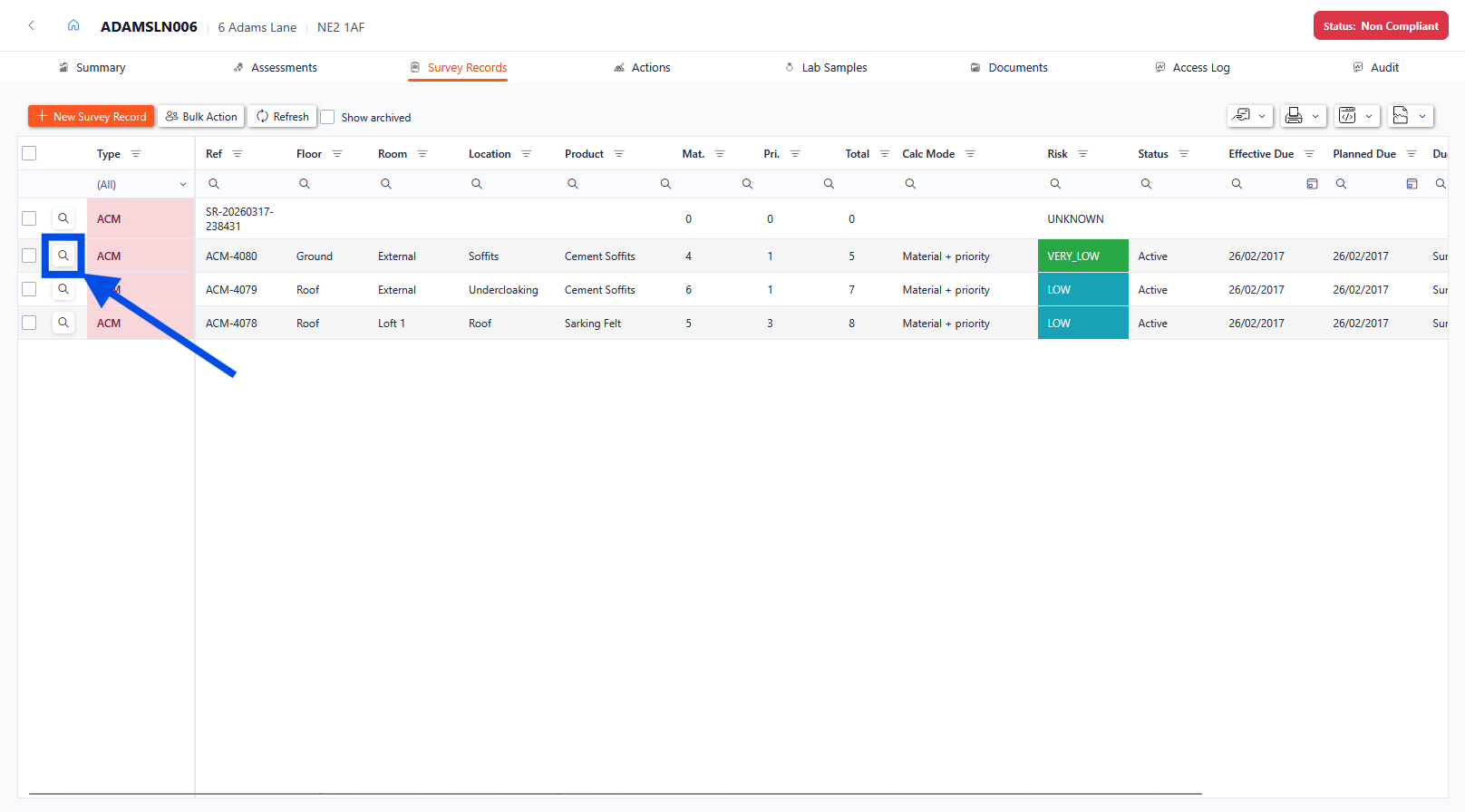
Survey Record Drill-Through
Survey Record Details
When the magnifying glass is selected, a pop-up will appear with the Survey Record details. The first tab will show all the details for the Survey Record. From here, details of the Survey Record can be updated (with relevant permissions enabled).
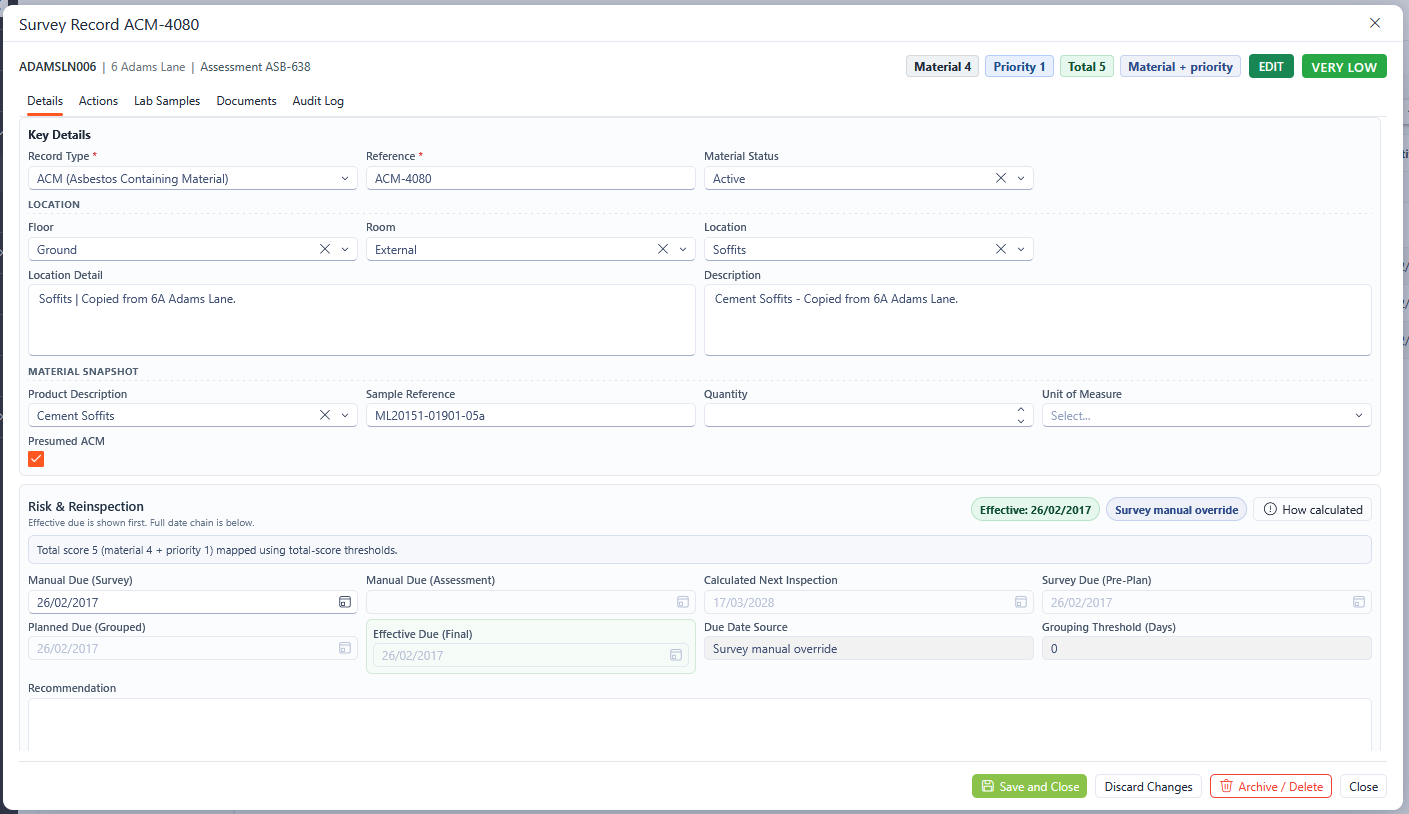
Survey Record Details
Any fields marked with an asterisk (*) are mandatory fields and must be completed.
Survey Record Actions
The Actions tab of the Survey Record section shows all the actions associated with the selected Survey. New actions can also be added from this screen.
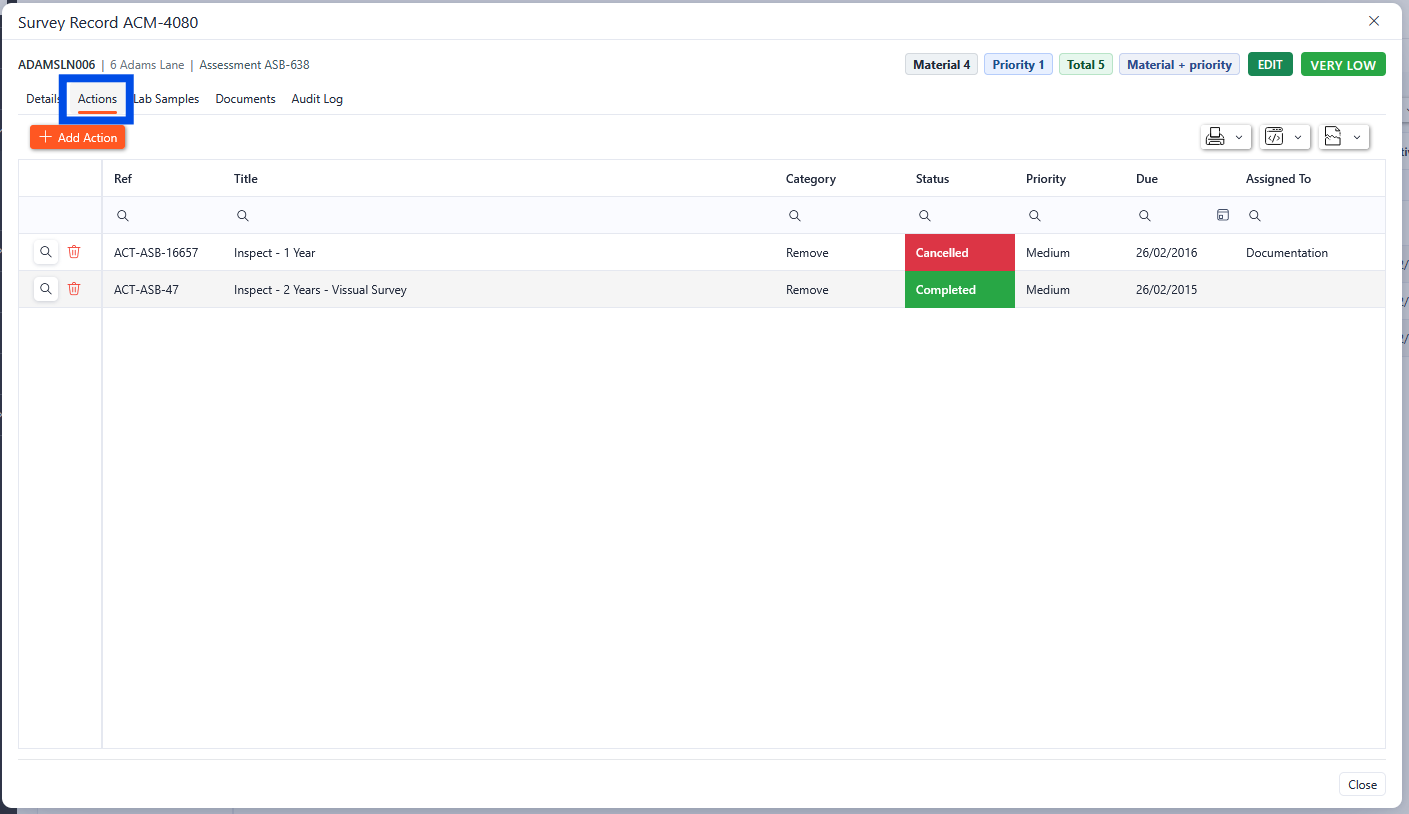
Survey Record Actions Tab
Survey Record Lab Samples
The Lab Samples tab of the survey record section shows all the actions associated with the selected survey. New Lab Samples can also be added from this screen.
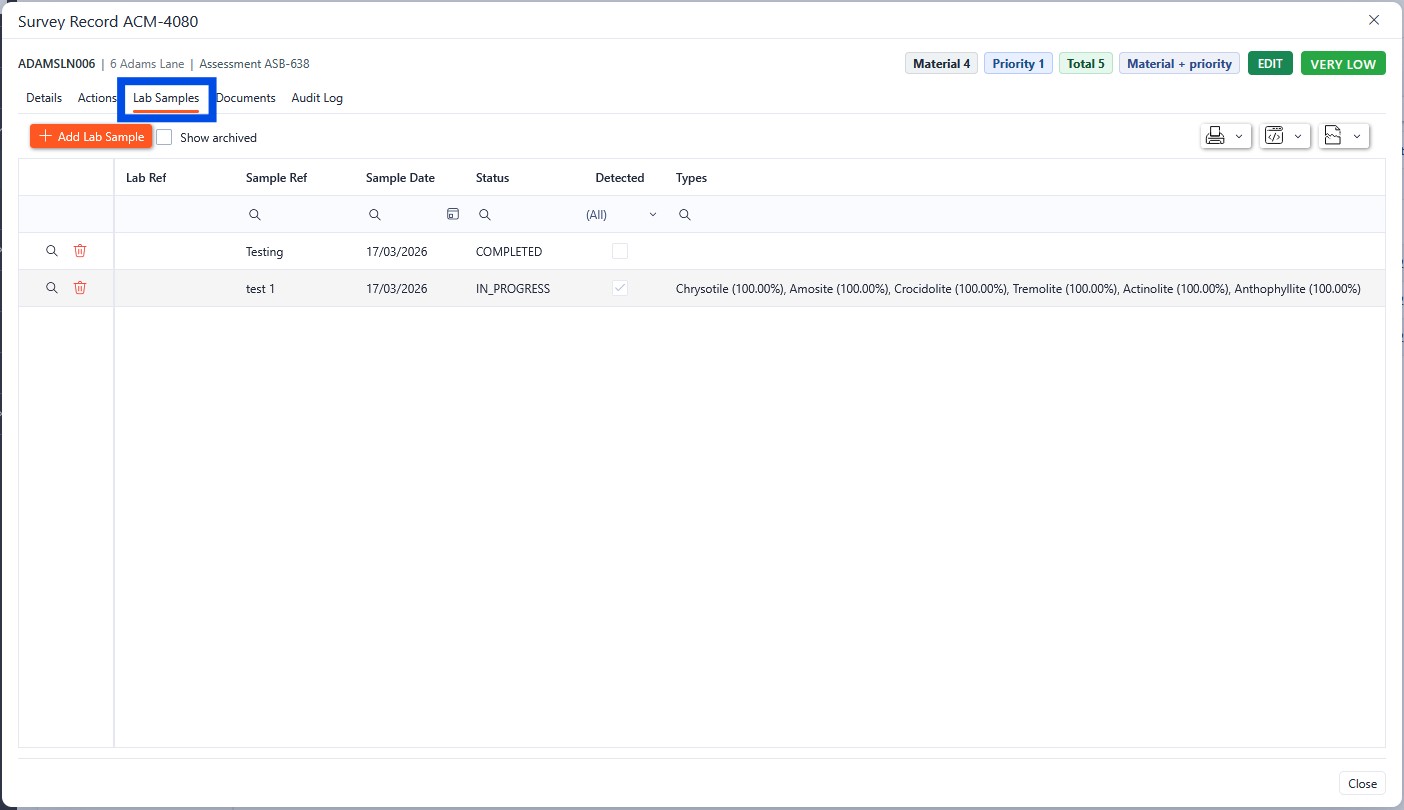
Survey record lab samples
Any of the Lab Samples can be viewed by clicking the magnifying glass in the required row. This will open up a new pop-up box with the details of the Lab Samples.
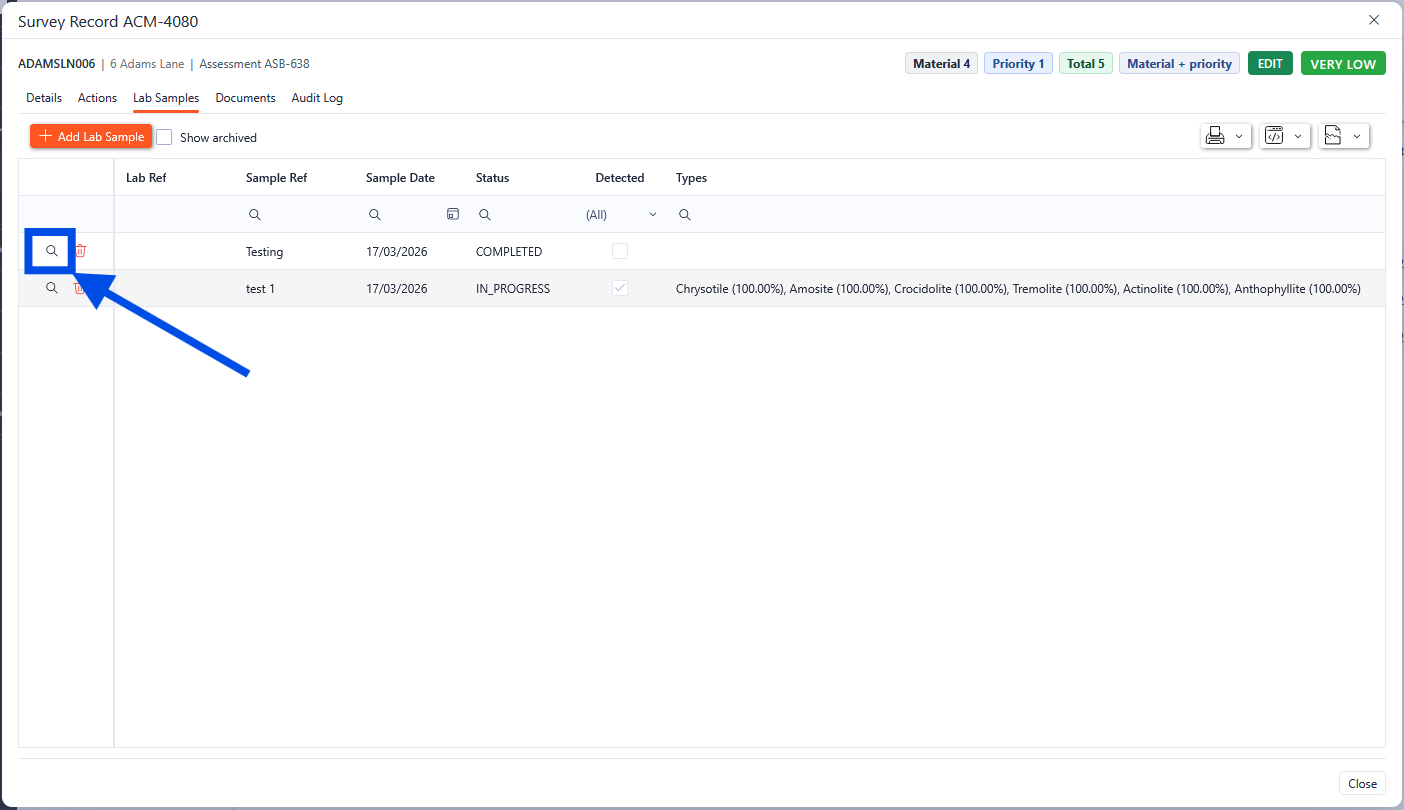
Survey record lab samples
Survey Record Documents
The documents tab within the survey record shows all the documents associated with the survey. From here, new documents can be uploaded, and existing documents can be viewed and downloaded.
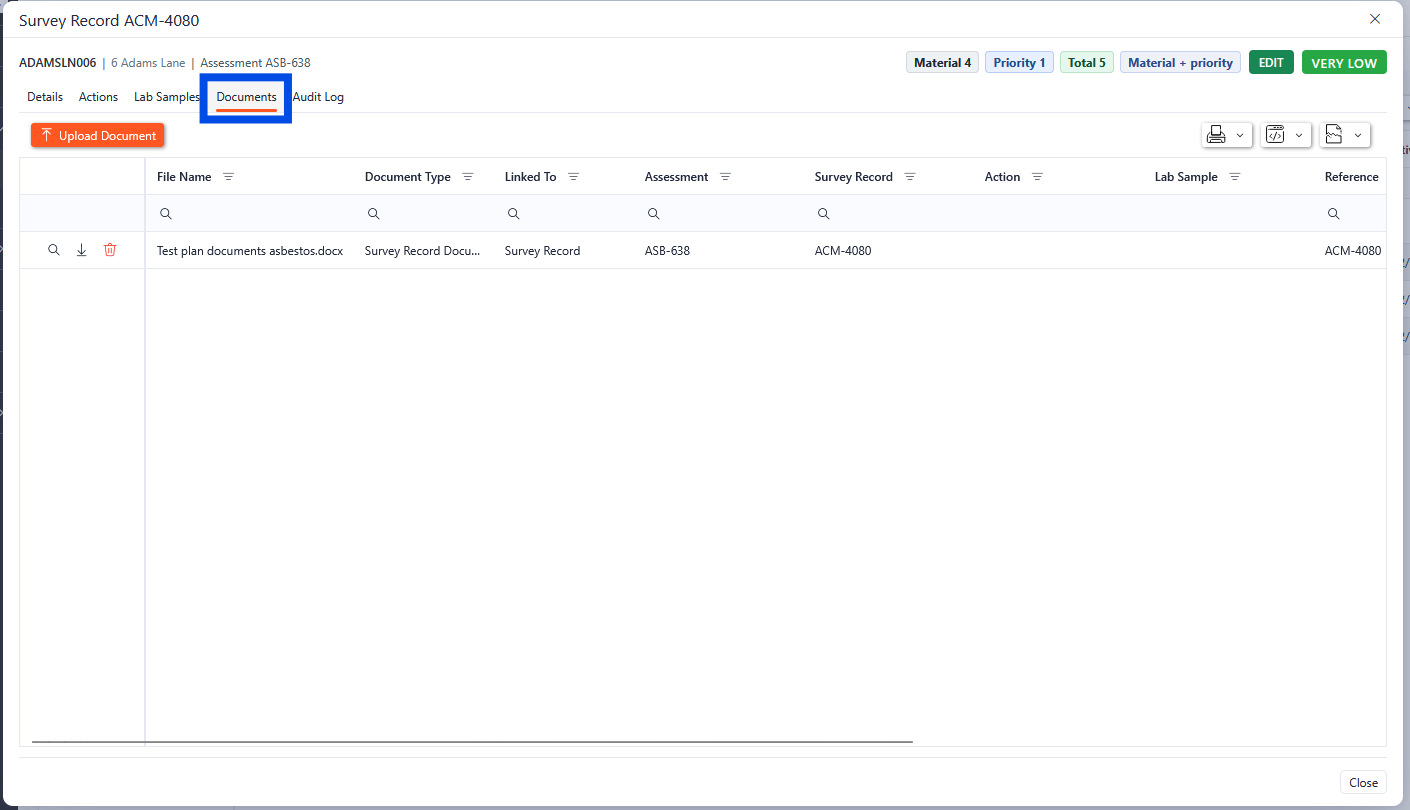
Survey record documents
Survey Record Audit Log
The audit log shows the audit trail for the Survey Record.
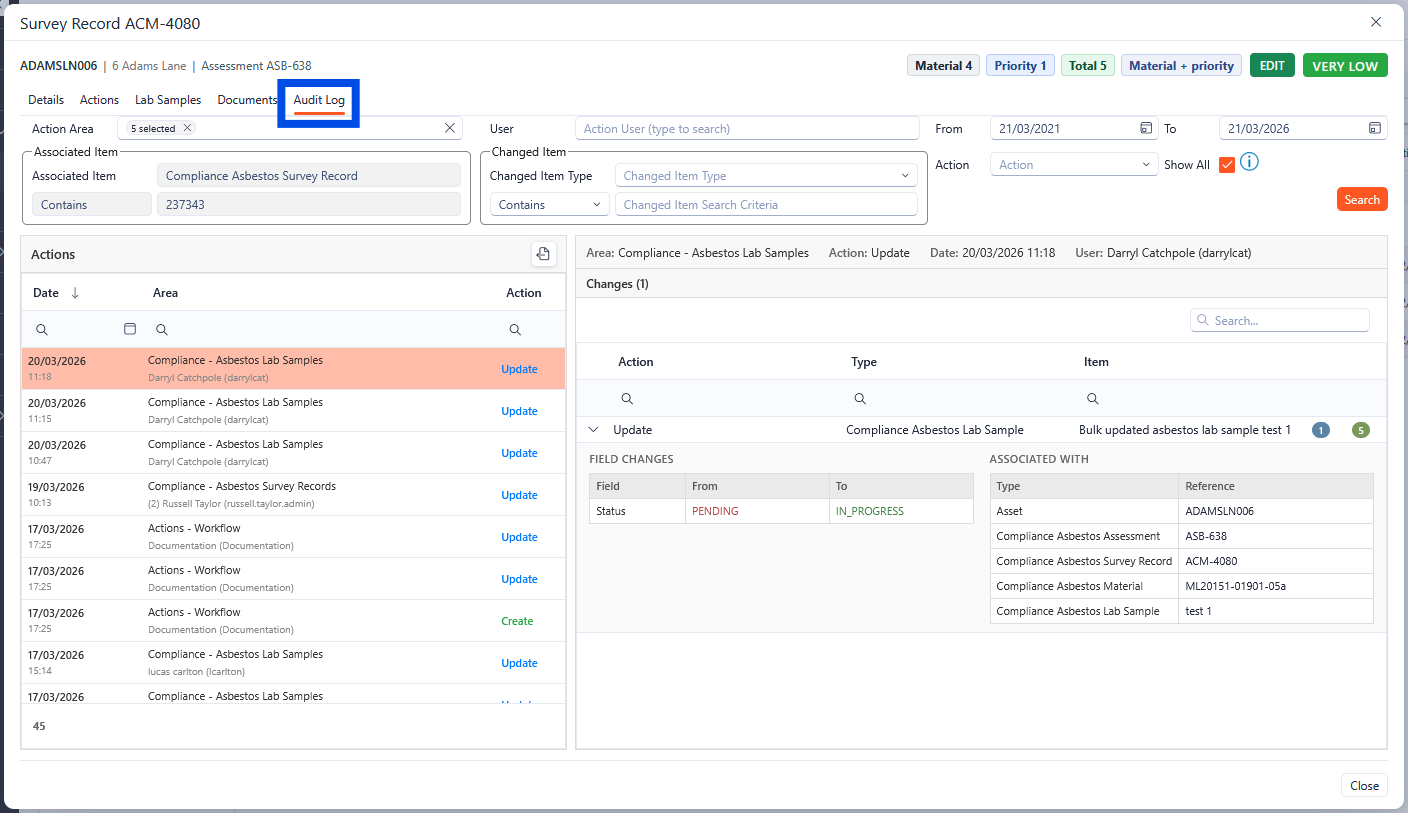
Survey Record audit log
Adding a Survey record
To add a new survey record to the selected asset, click the New Survey Record button.
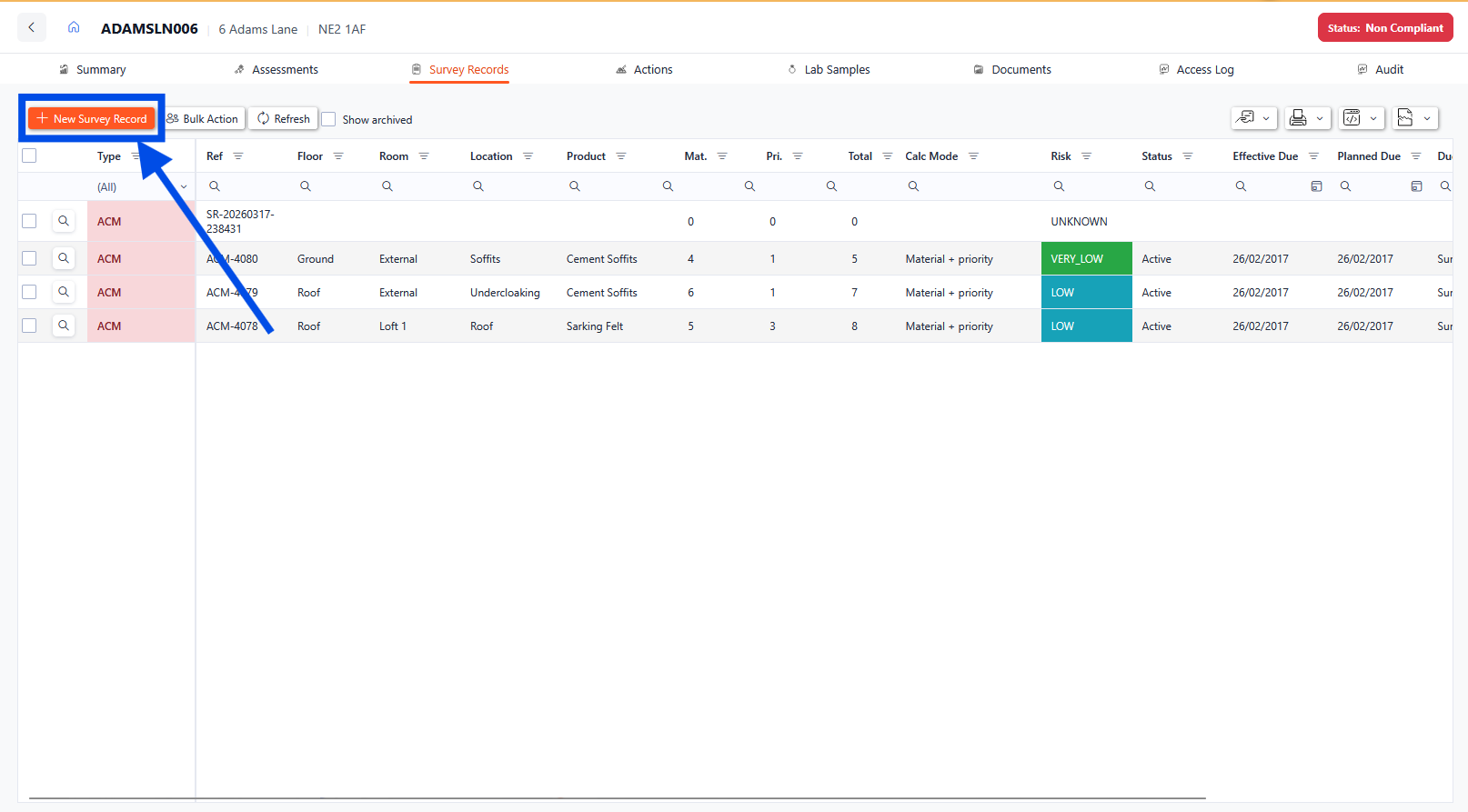
Adding a new Survey Record
A pop-up box will appear providing the available active assessments that the survey is to be linked to. Select the required assessment and click Continue.
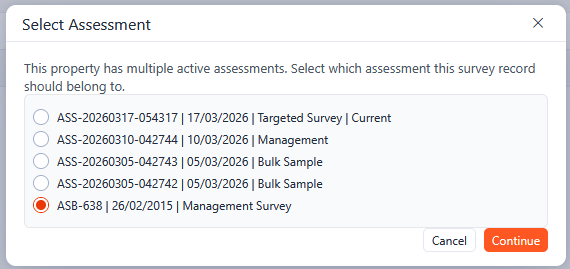
Assessment Selection
The survey record box will appear to complete the details of the survey record.
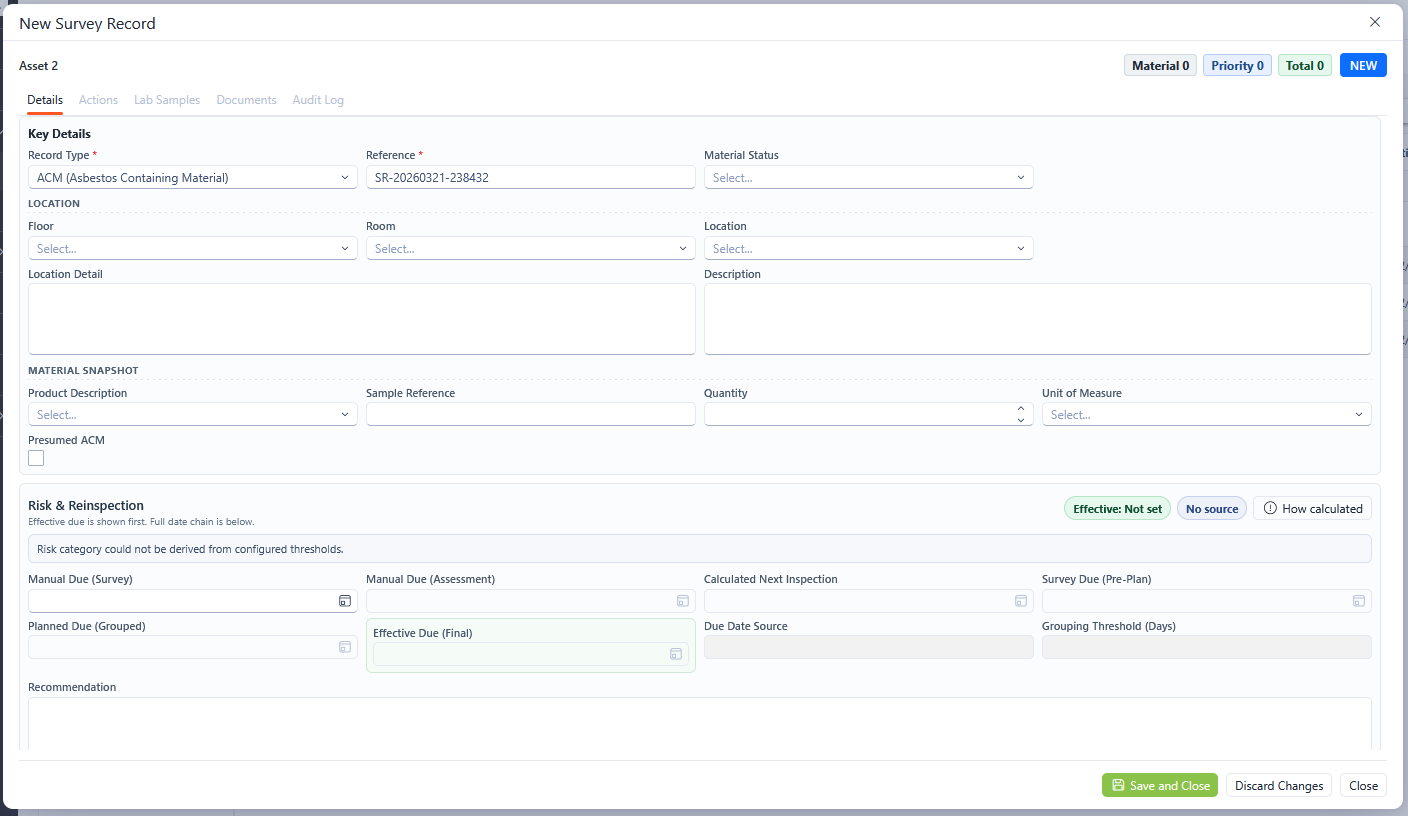
New Survey Record
Any fields marked with an asterisk (*) are mandatory fields and must be completed. Once populated, click the Save and Close button to save the changes and close the pop-up box.
The Reference is auto generated but can be manually updated. The format of the autogenerated reference can be adjusted through the configuration of the Asbestos system.
Actions
The Actions tab of the Asbestos 360 view provides details of the actions associated with the selected asset.
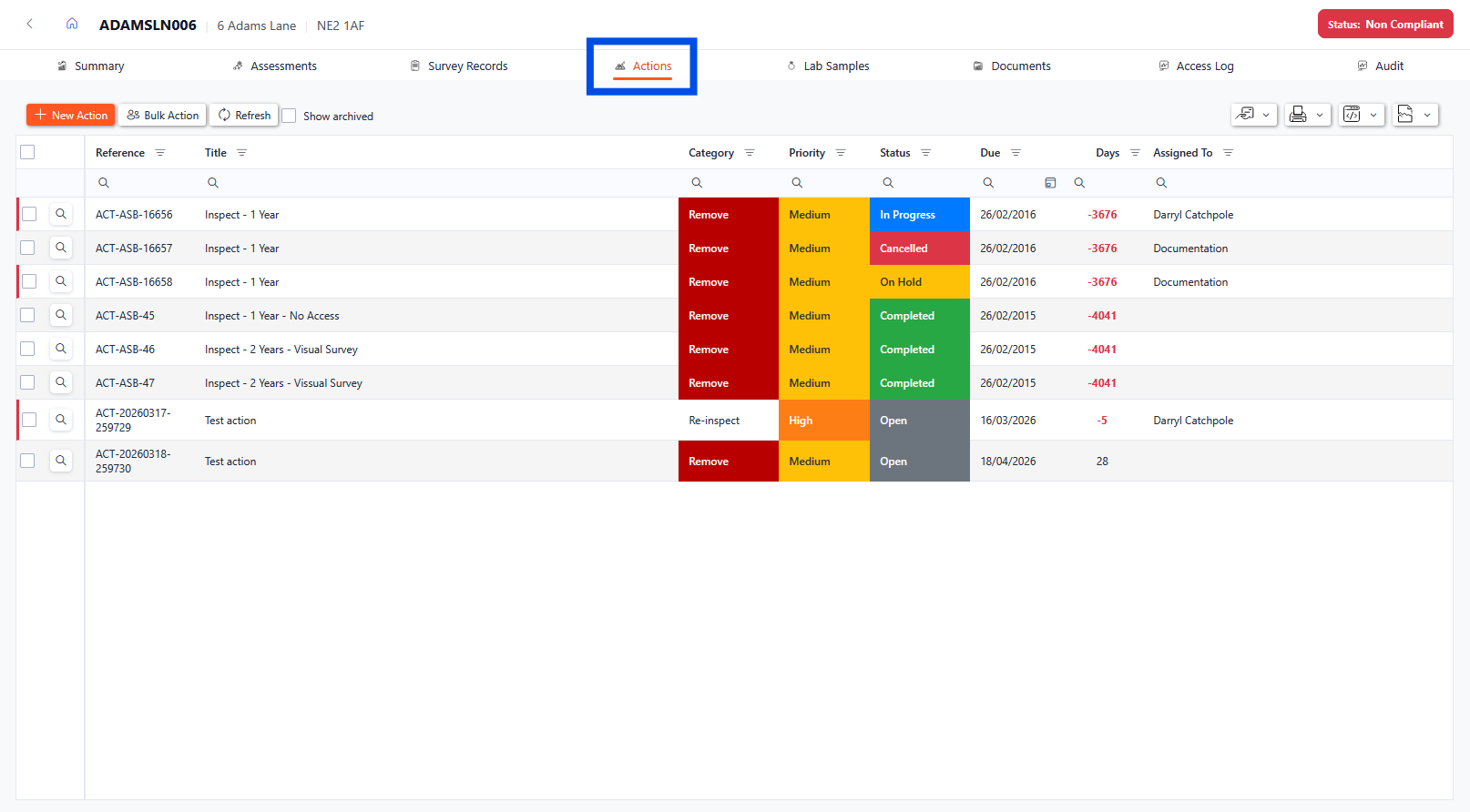
Actions tab of the asset 360 view
Actions Drill-Through
Each Action is shown in the grid with summary information about each action. To drill through into the individual record, click the magnifying glass next to the desired row.
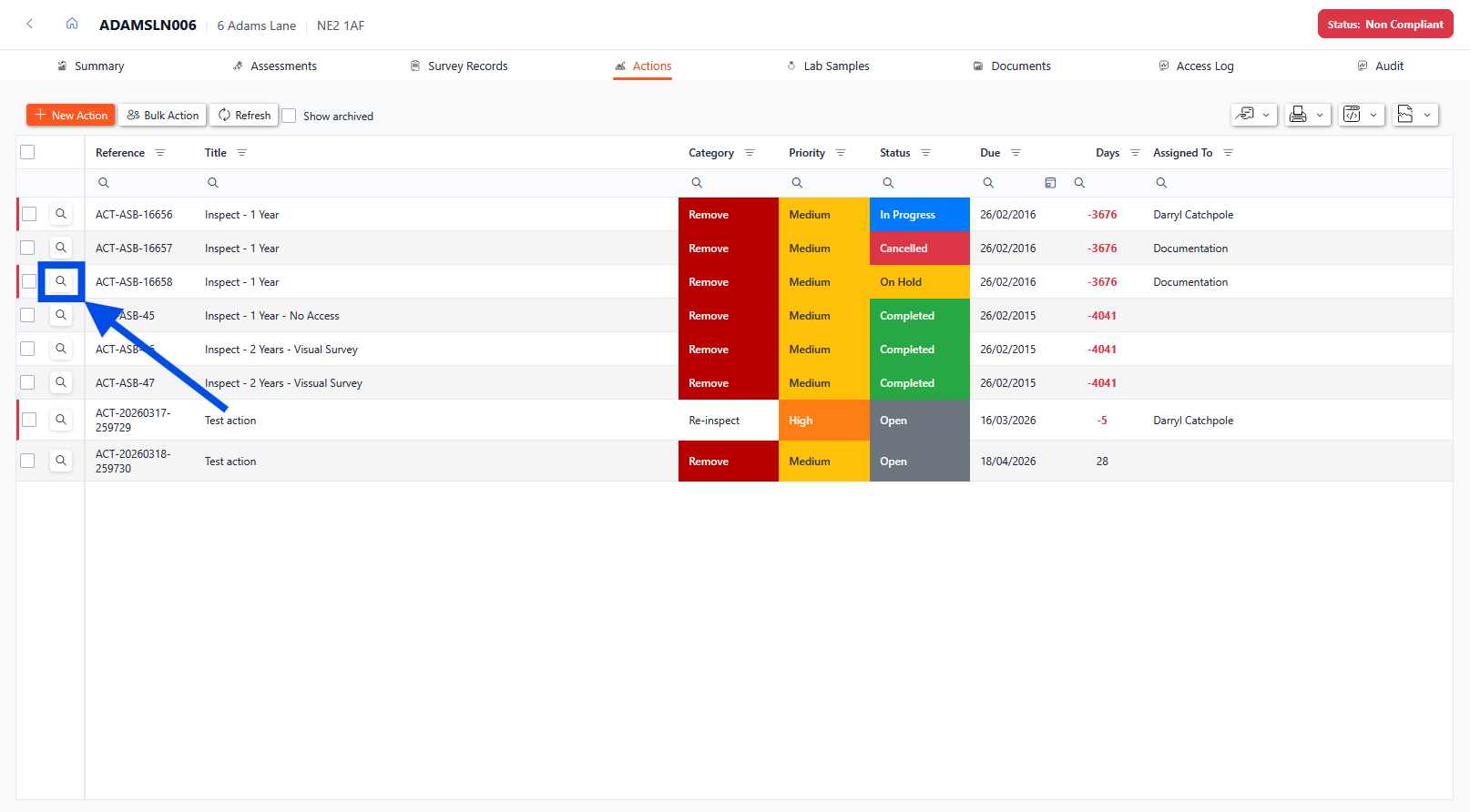
Actions Drill-Through
Actions Details
When the magnifying glass is selected, a pop-up will appear with the Action details. The first tab will show all the details for the action. From here, details of the action can be updated (with relevant permissions enabled).
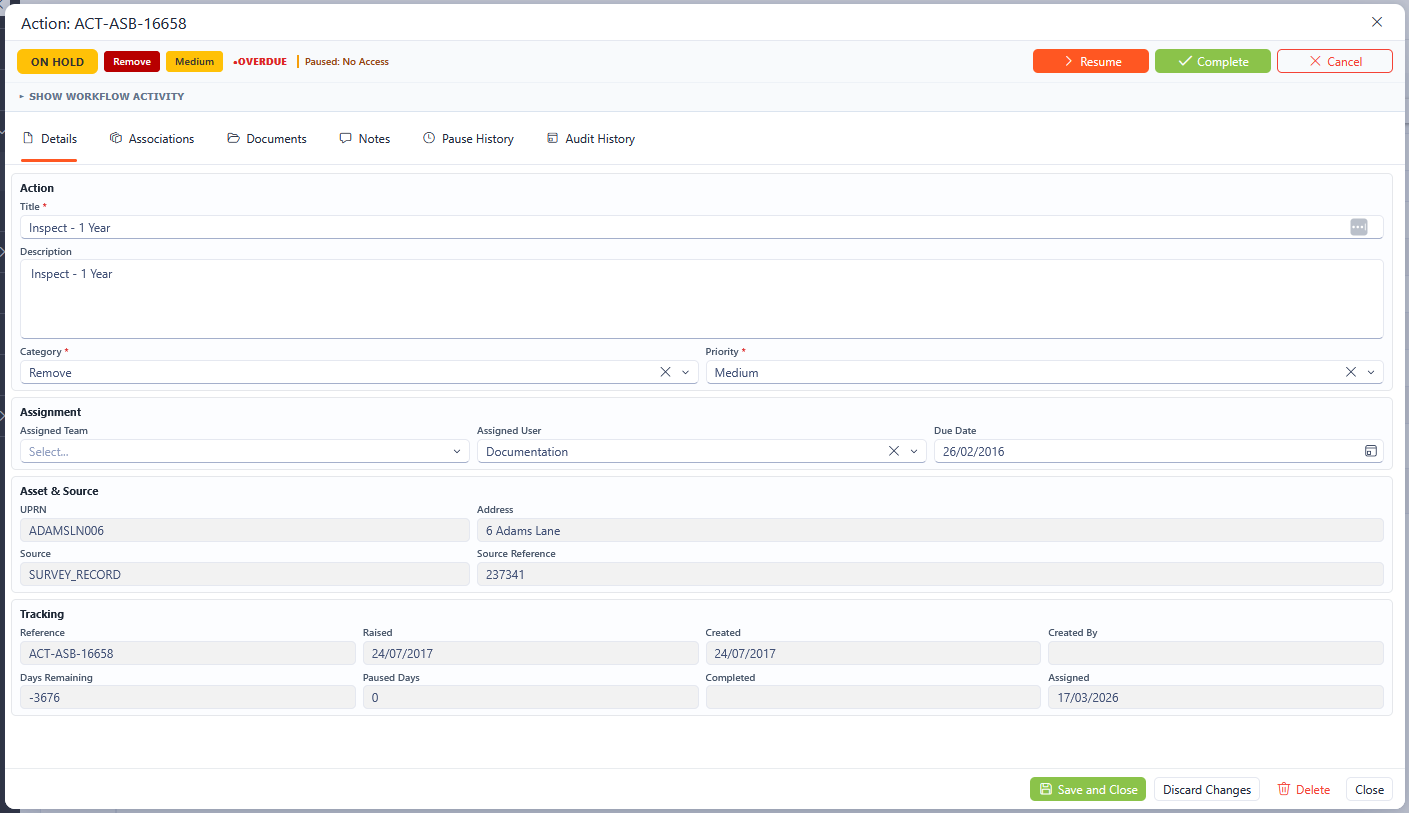
Actions Details
Any fields marked with an asterisk (*) are mandatory fields and must be completed.
Actions Associations
The Associations tab shows all the associated asbestos information related to the action. The magnifying glass will drill through to the record, the house symbol will drill through to the asset 360 view.
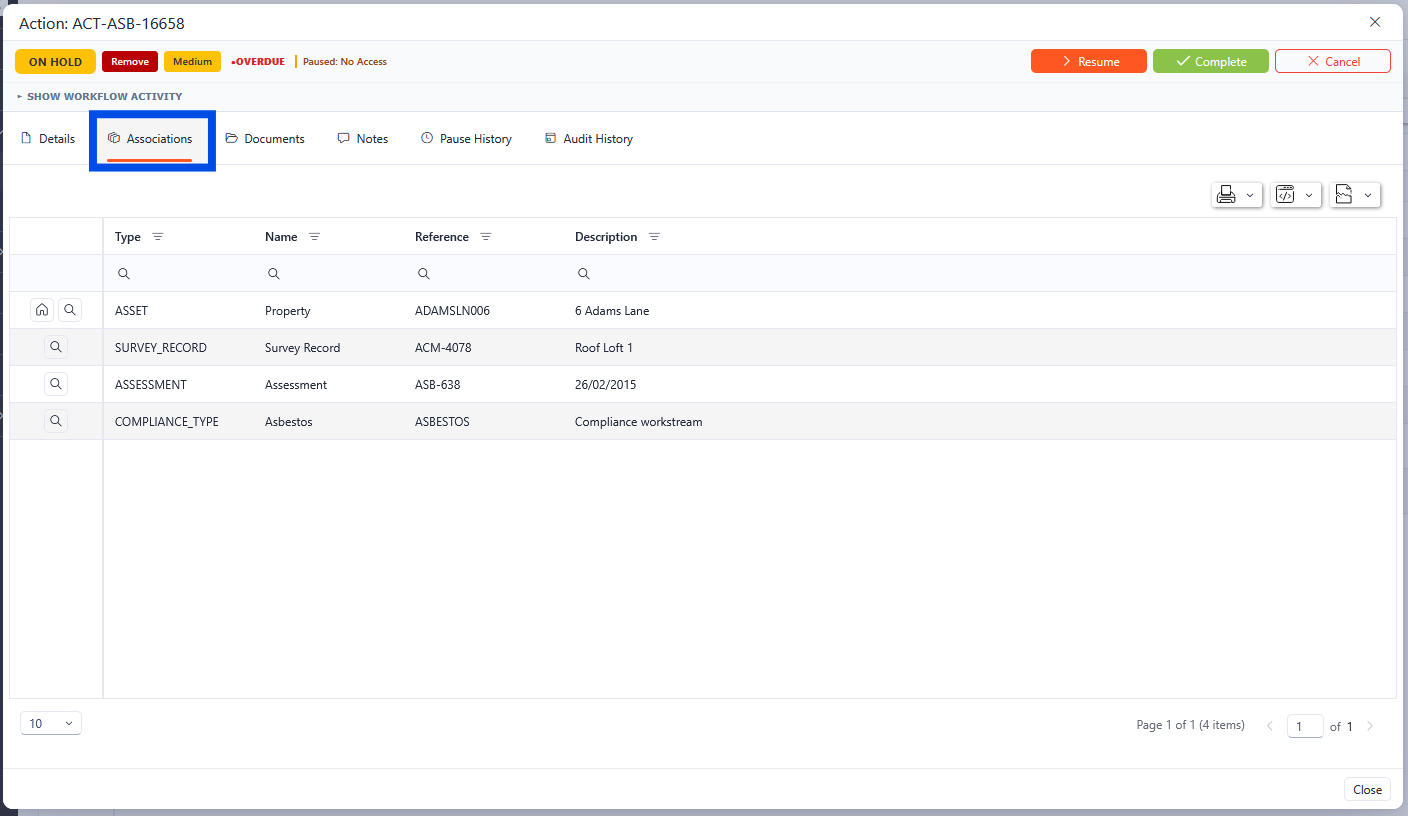
Actions Associations
Actions Documents
The documents tab within the Actions section shows all the documents associated with the Action. From here, new documents can be uploaded, and existing documents can be viewed and downloaded.
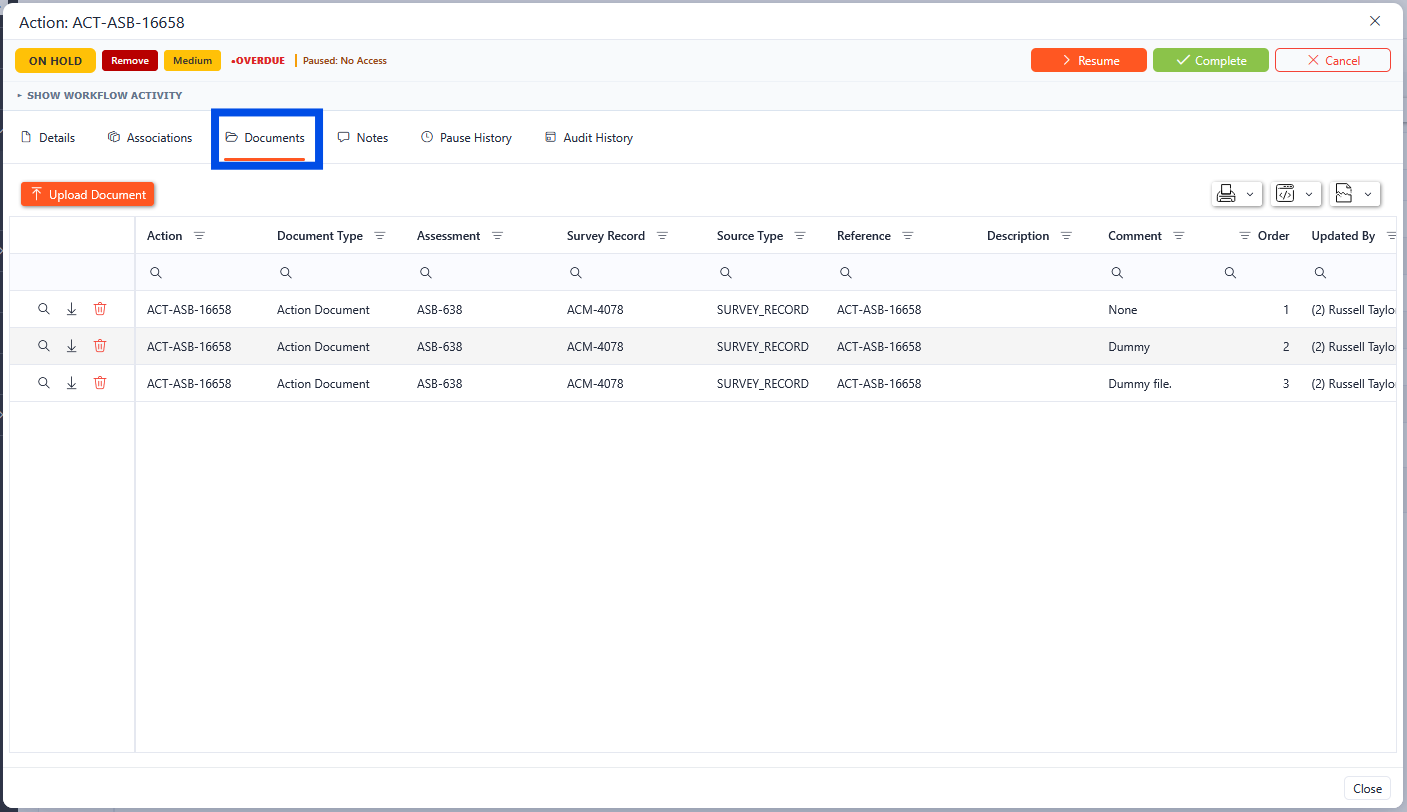
Actions Documents
Action Notes
The Notes tab of the actions pop-up shows all the notes related to the action.
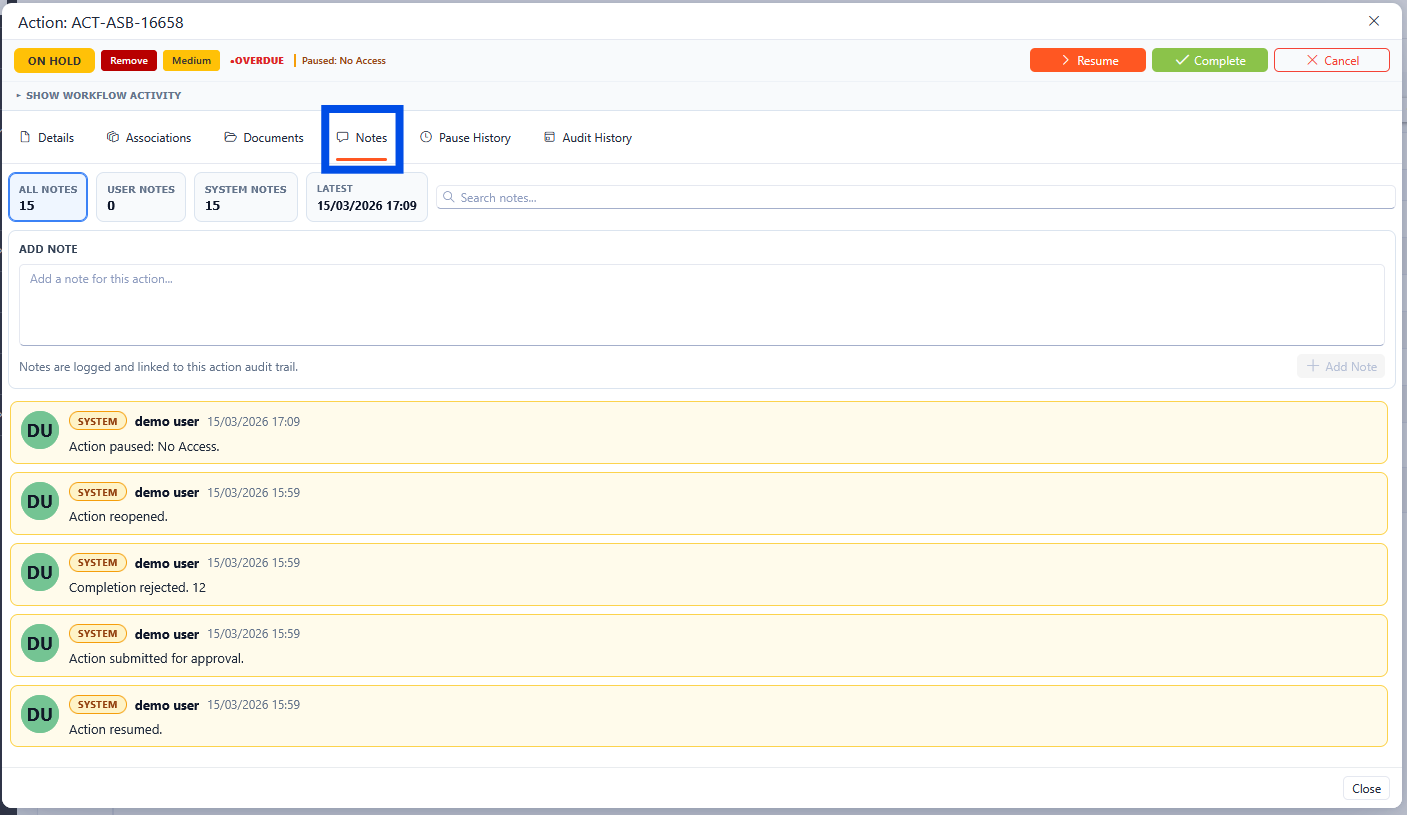
Action notes
Actions Pause History
The Pause History tab of the actions pop-up shows details of all the pauses on the action.
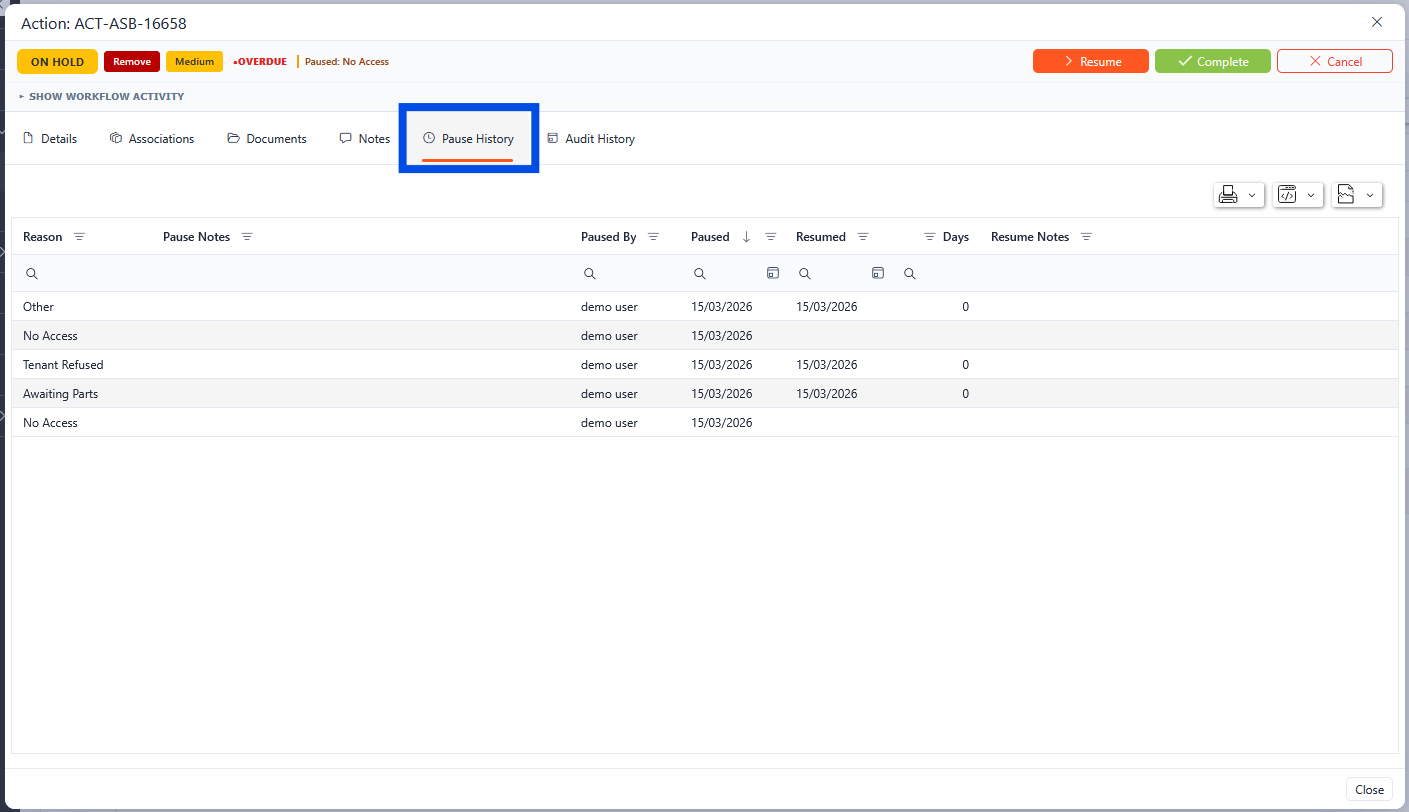
Action Pause History
Actions Audit History
The audit History shows the audit trail for the Action.
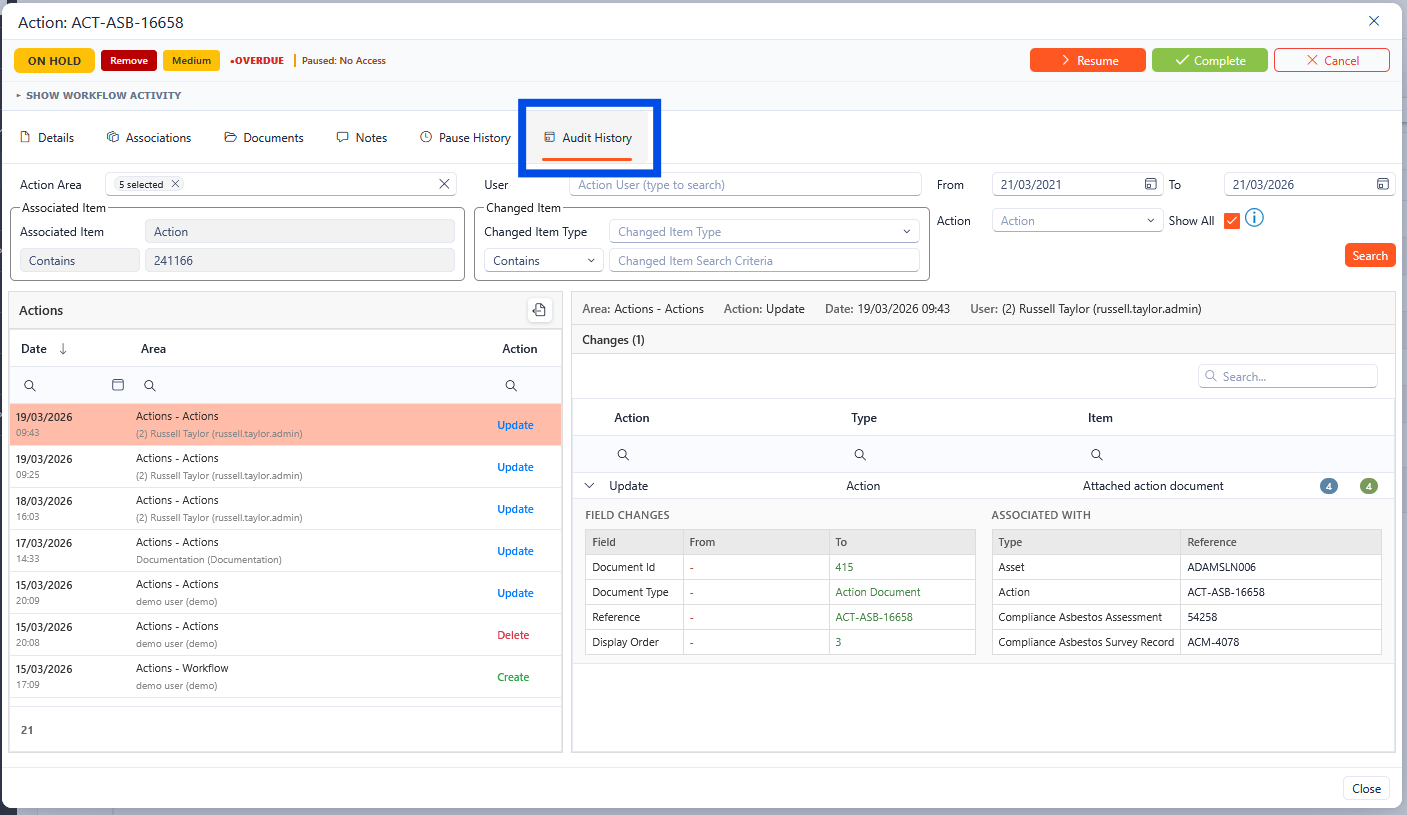
Actions Audit
Adding a new Action
To add a new action to the selected asset, click the New Action Record button.
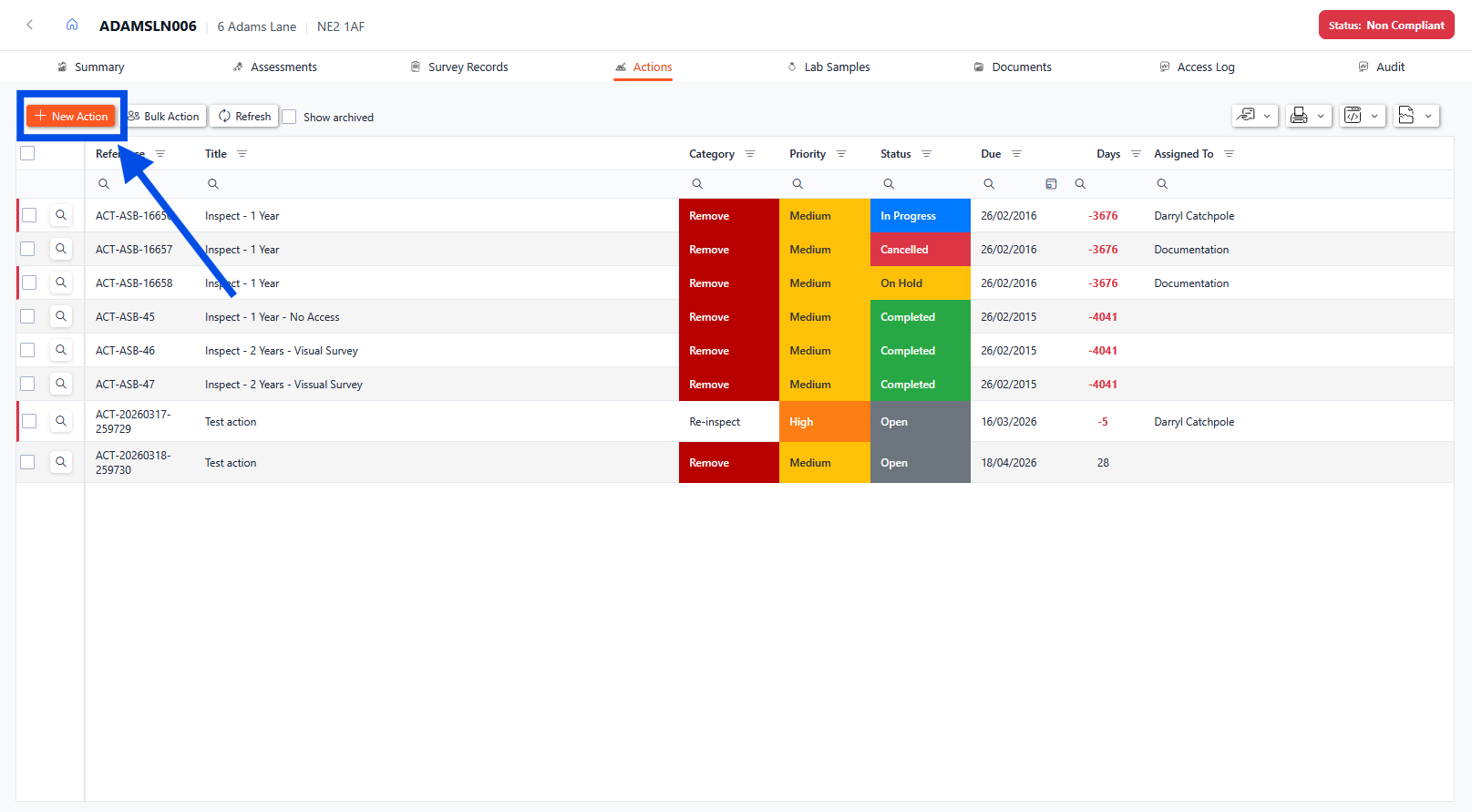
Adding a new action
Any fields marked with an asterisk (*) are mandatory fields and must be completed. Once populated, click the Save and Close button to save the changes and close the pop-up box.
The Reference is auto generated but can be manually updated. The format of the autogenerated reference can be adjusted through the configuration of the Asbestos system.
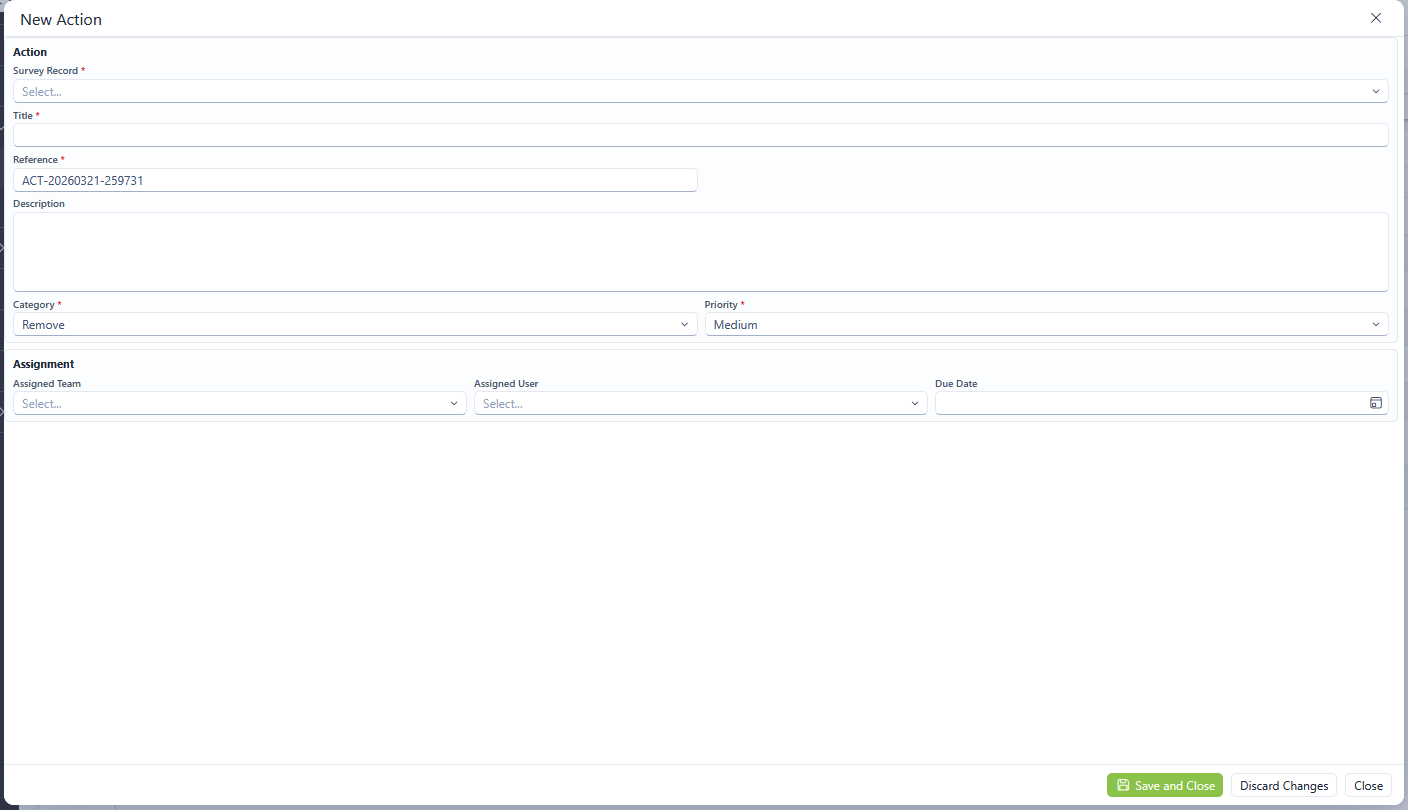
New Action Pop-up
Lab Samples
The Lab Samples tab of the Asbestos 360 view provides details of the lab samples associated with the selected asset.
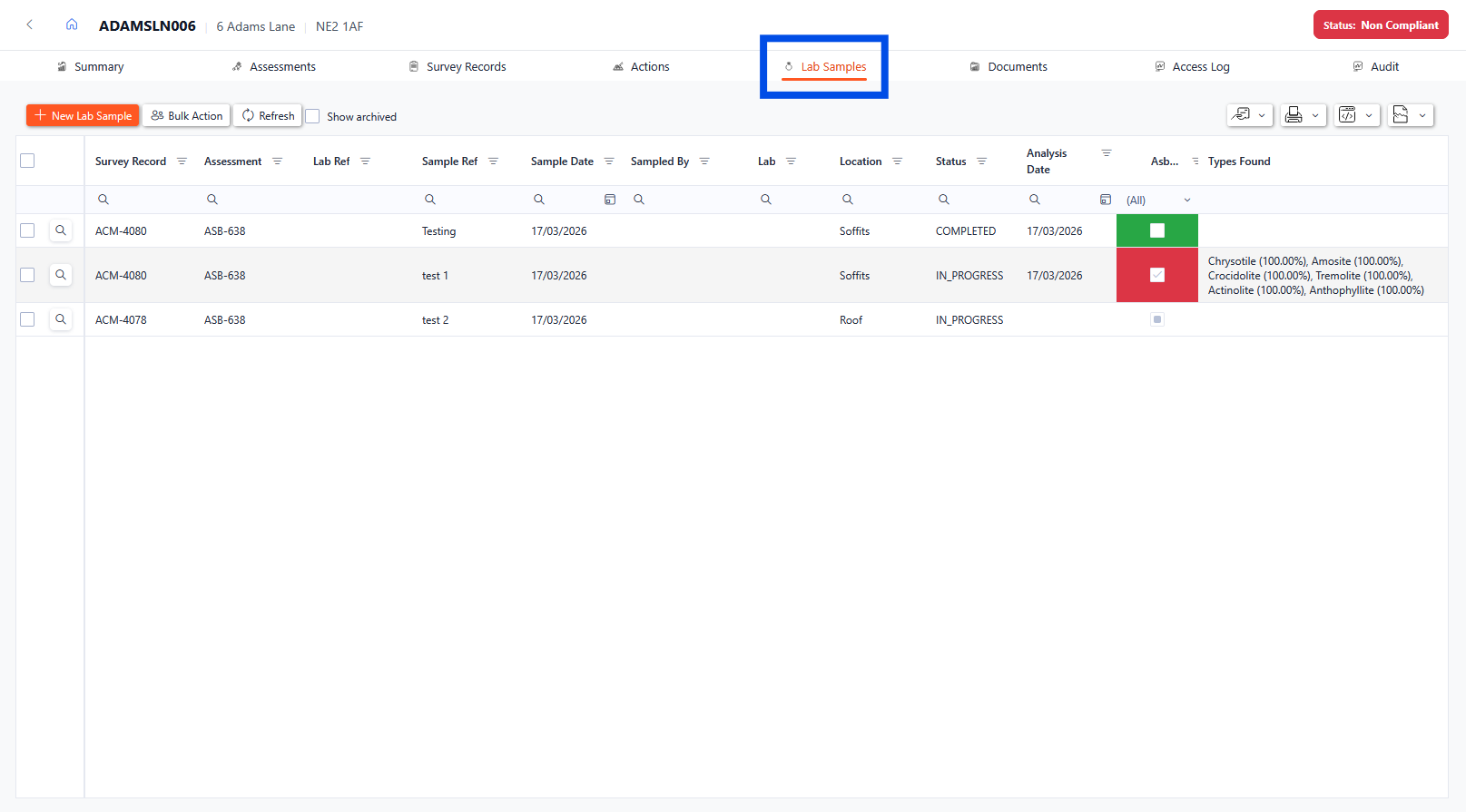
Lab Samples withing Asbestos Asset overview
The see any archived samples, check the show archived box.
Lab Samples Drill-Through
Each Lab Sample is shown in the grid with summary information about each sample. To drill through into the individual record, click the magnifying glass next to the desired row.
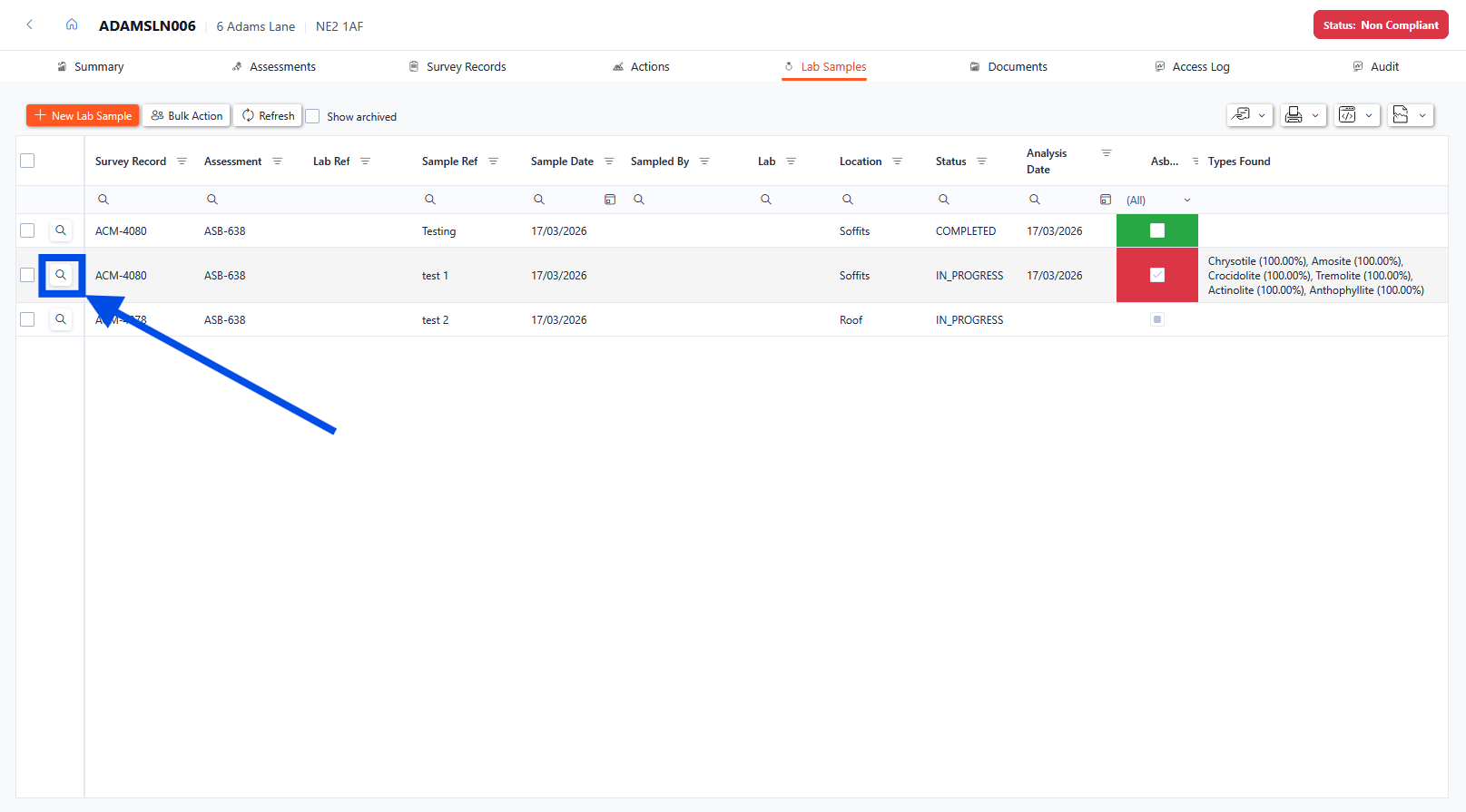
Lab Sample Drill-Through
Lab Samples Details
When the magnifying glass is selected, a pop-up will appear with the lab sample details. From here, details of the Survey Record can be updated (with relevant permissions enabled).
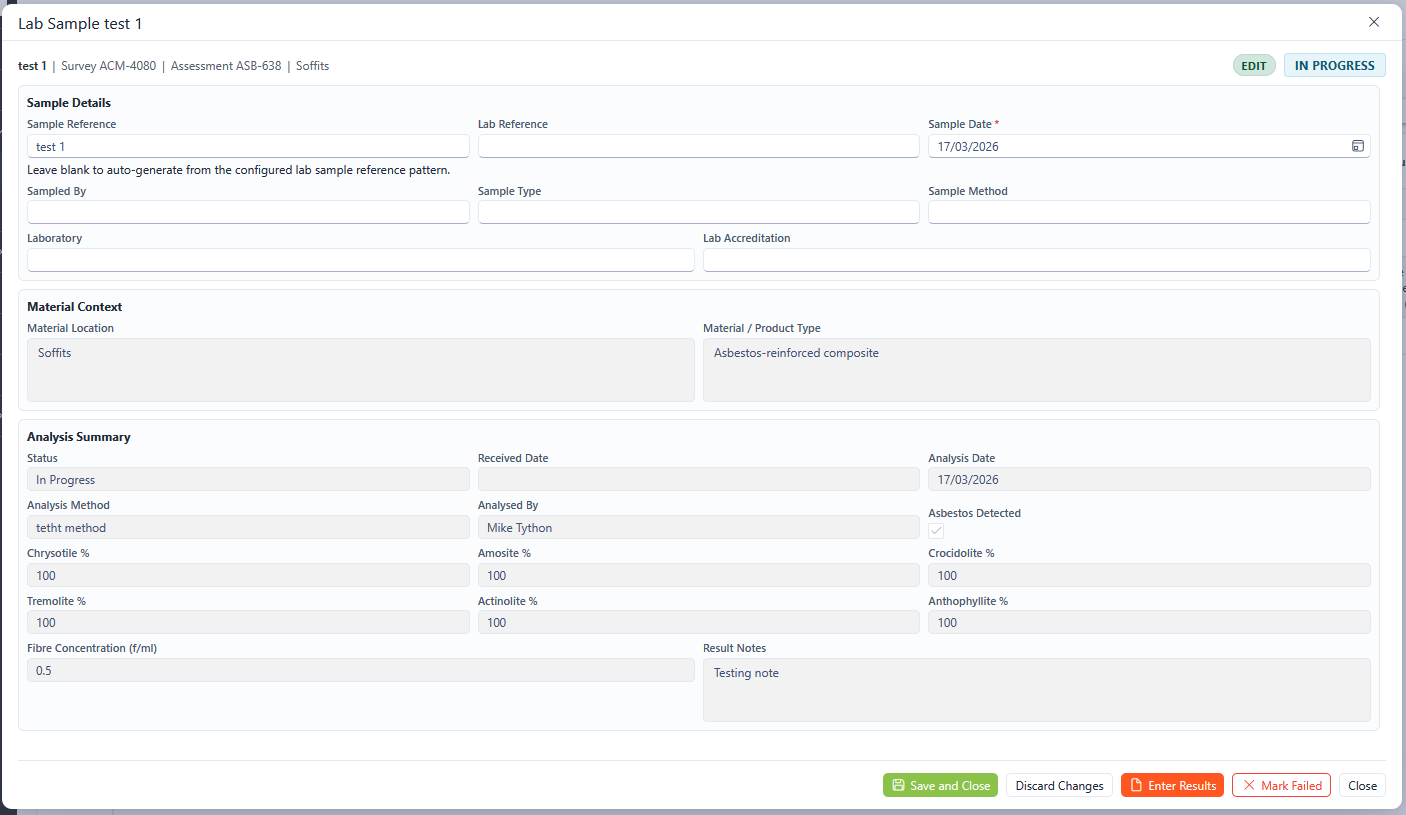
Lab Samples Details
Any fields marked with an asterisk (*) are mandatory fields and must be completed.
Adding a new Lab Sample
To add a new lab sample to the selected asset, click the New lab Sample Record button.
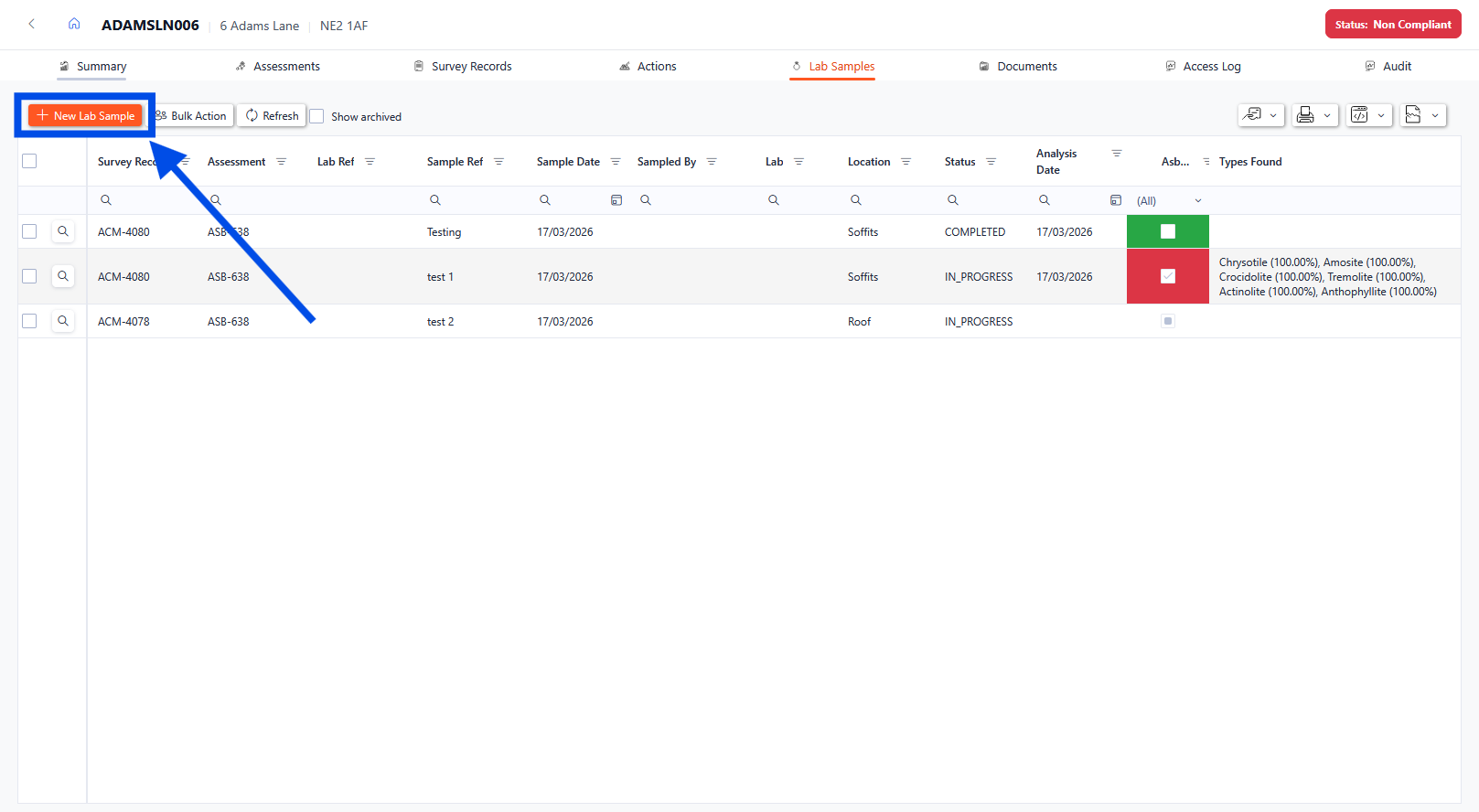
Add a new Lab Sample
Any fields marked with an asterisk (*) are mandatory fields and must be completed. Once populated, click the Save and Close button to save the changes and close the pop-up box.
The Reference is auto generated but can be manually updated. The format of the autogenerated reference can be adjusted through the configuration of the Asbestos system.
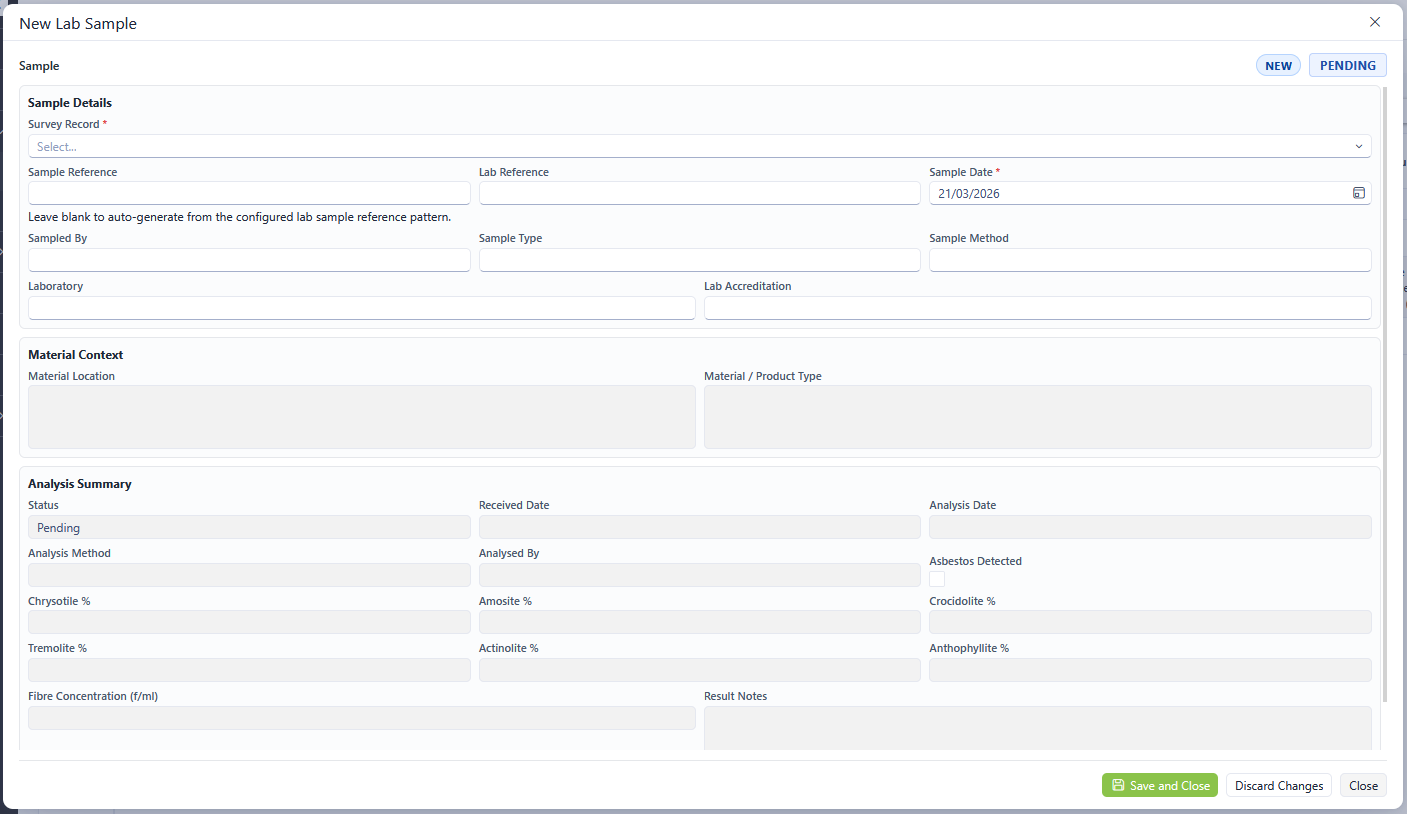
Adding new Lab Sample details
Documents
The Documents tab of the Asbestos 360 view provides details of the documents associated with the selected asset. From here existing documents can be viewed and downloaded.
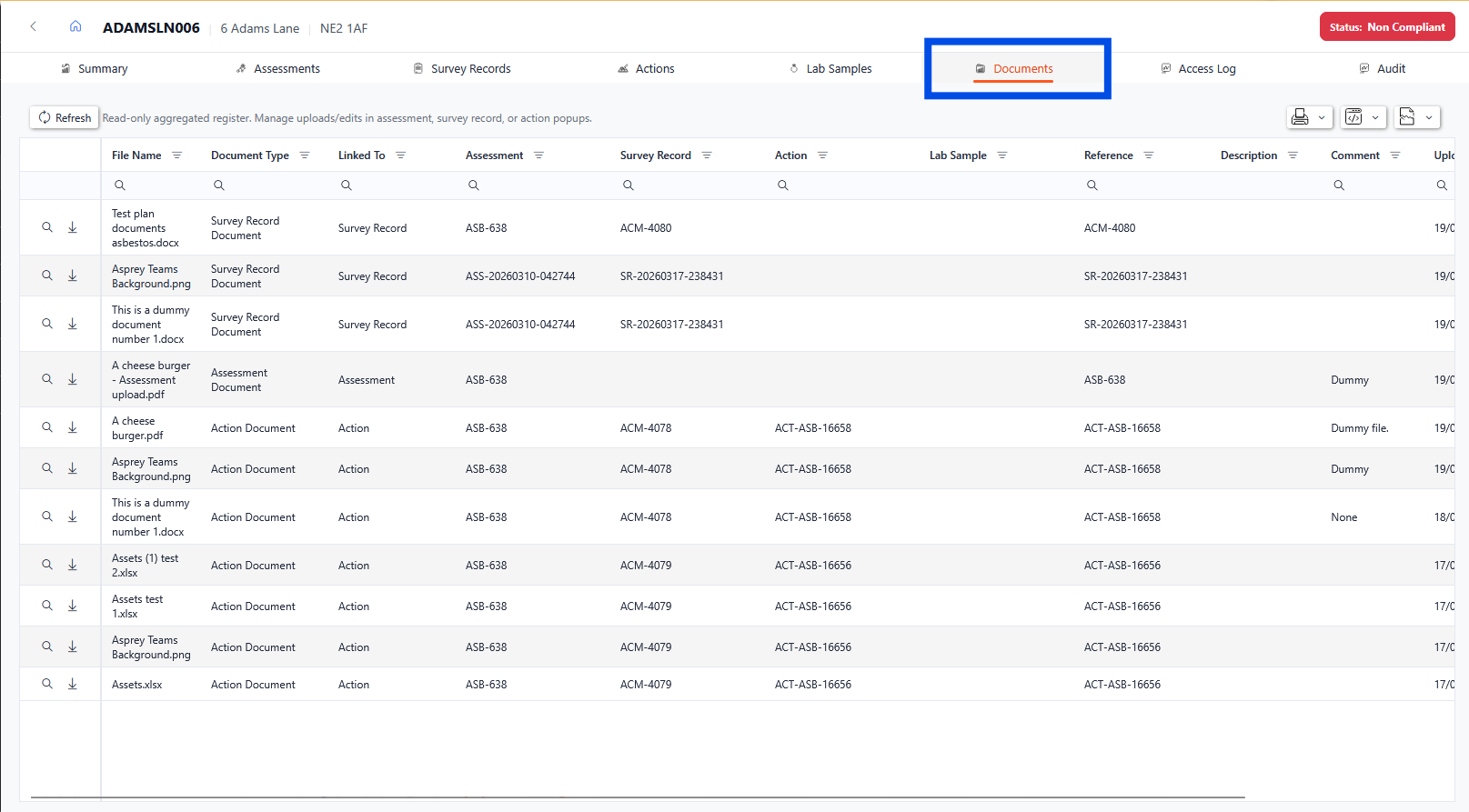
Documents within Asbestos asset overview
Access Log
The access log shows the history of access to the asset. This shows the date and time, user and type of access.
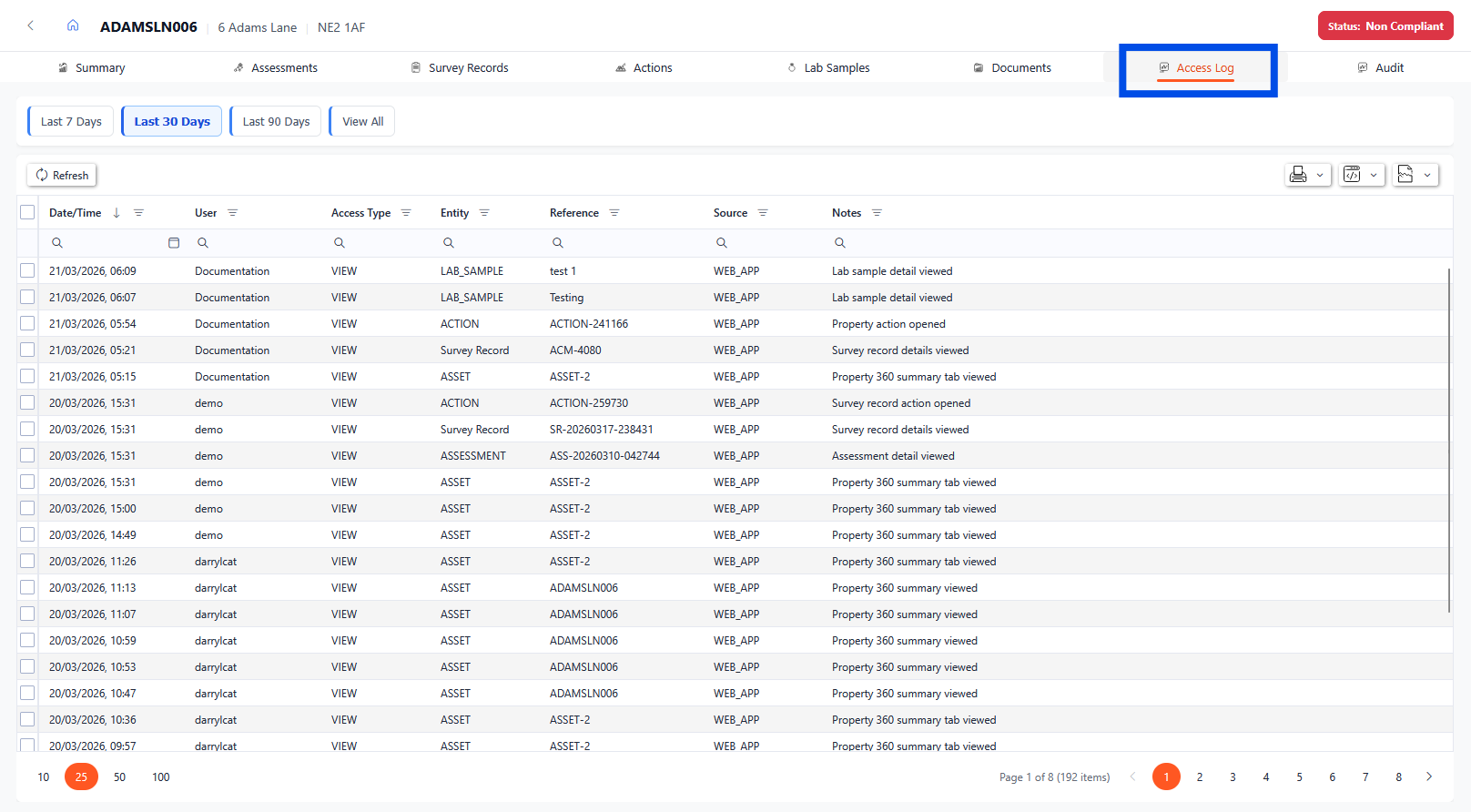
Access log within Asbestos asset overview
Audit
The audit shows the audit trail of all updates associated with the asset.
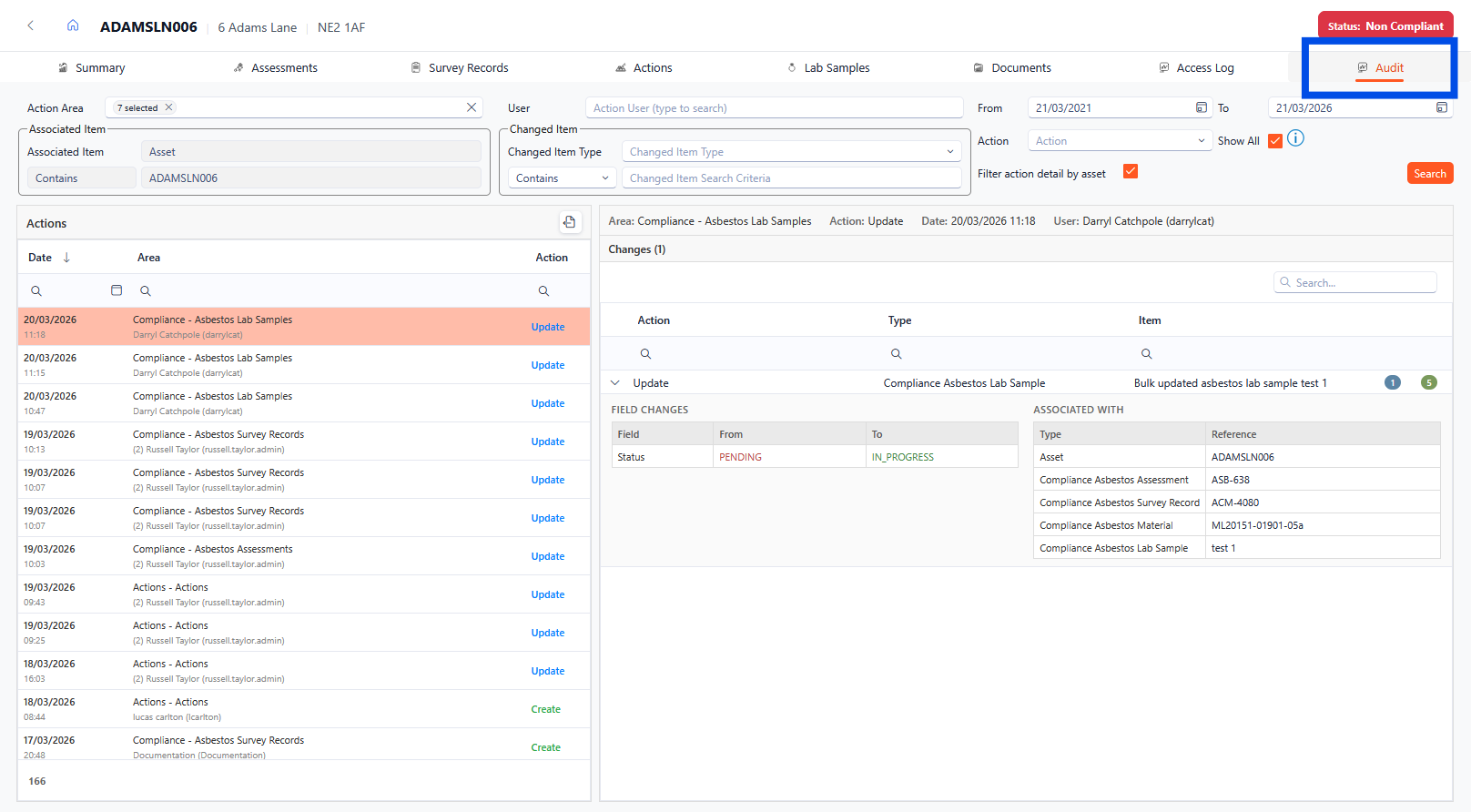
Audit within Asbestos asset overview