
Asbestos Bulk Actions
Bulk Actions can be access across various sections of the Asbestos function to make changes to multiple records at the same time. Select the records you wish to bulk update and then click the Bulk Actions icon.
Once the bulk action button has been selected, a popup dialogue box will appear with the bulk change options available.
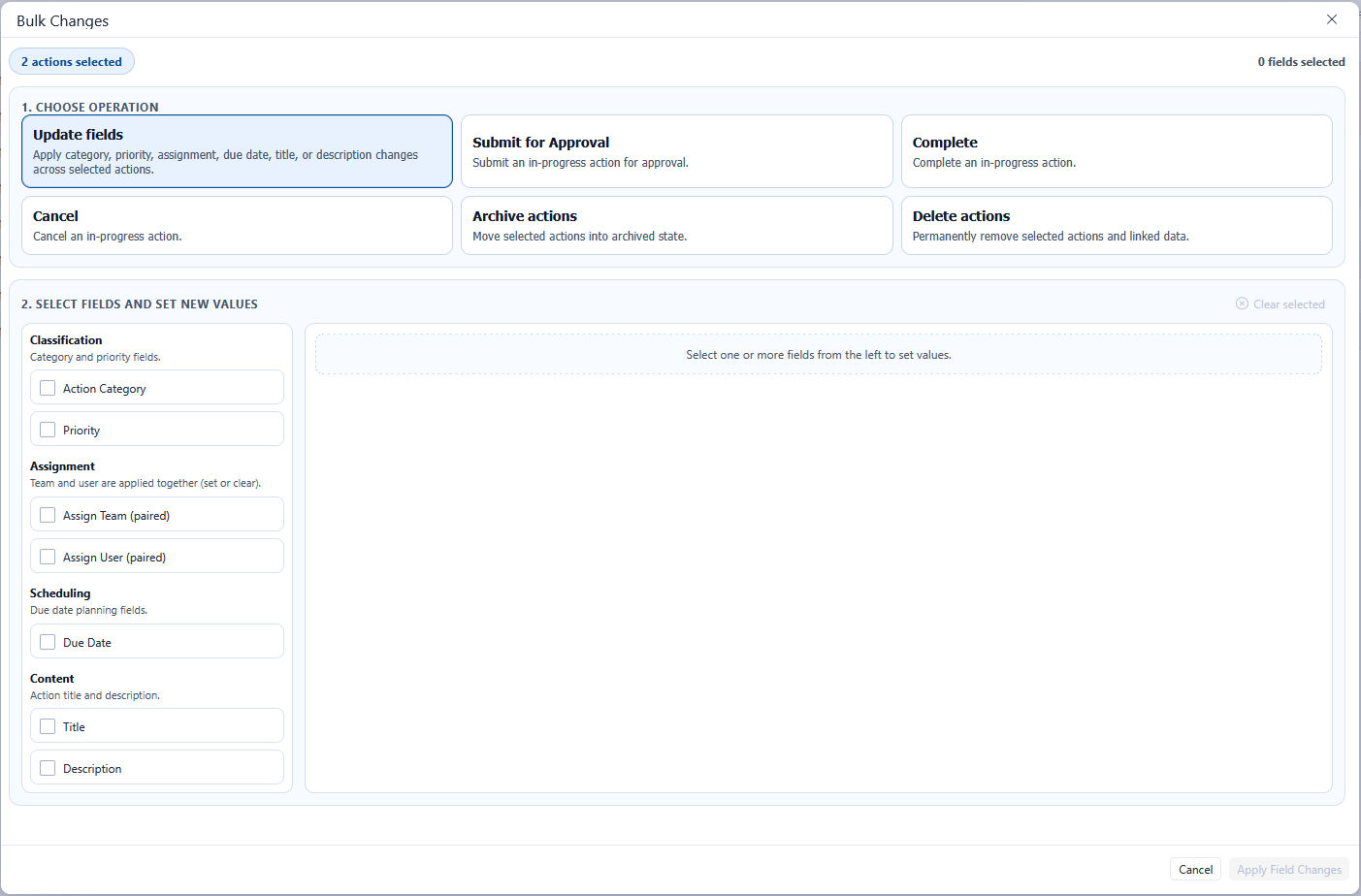
The bulk changes popup box has six operation options to choose from. The lower grid will update to reflect the operation selected in the top section.
Bulk Actions - Update Fields
When the Update Fields operation is selected in the bulk actions popup, this allows for certain fields to be bulk updated. Any number of the update fields can be selected in a single update. The number of selected fields is displayed in the top right-hand corner.
The available fields to bulk update are:
Action Category
Priority
Assign Team
Assign User
Dues Date
Title
Description
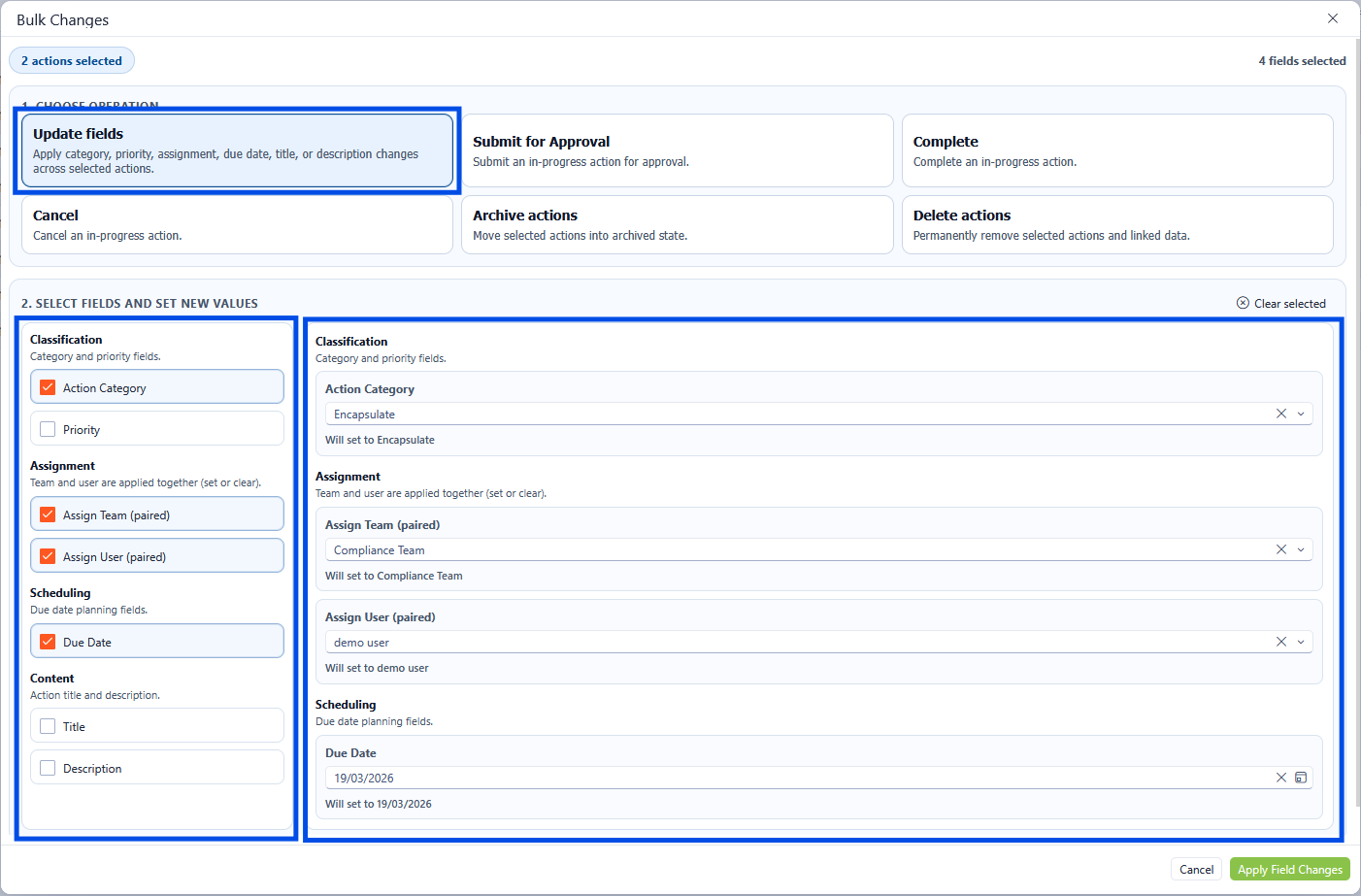
Bulk Actions - Update Fields
Once the relevant updates have been selected, click the Apply Field Changes button to save the changes.
Bulk Actions - Submit for Approval
Multiple actions can be updated to the submit for approval status in the bulk actions screen. Select the Submit for Approval icon in the upper section. The lower grid will allow additional details to be added in the form of notes as required. Once all relevant notes are applied, click the Apply Action button to save the changes.
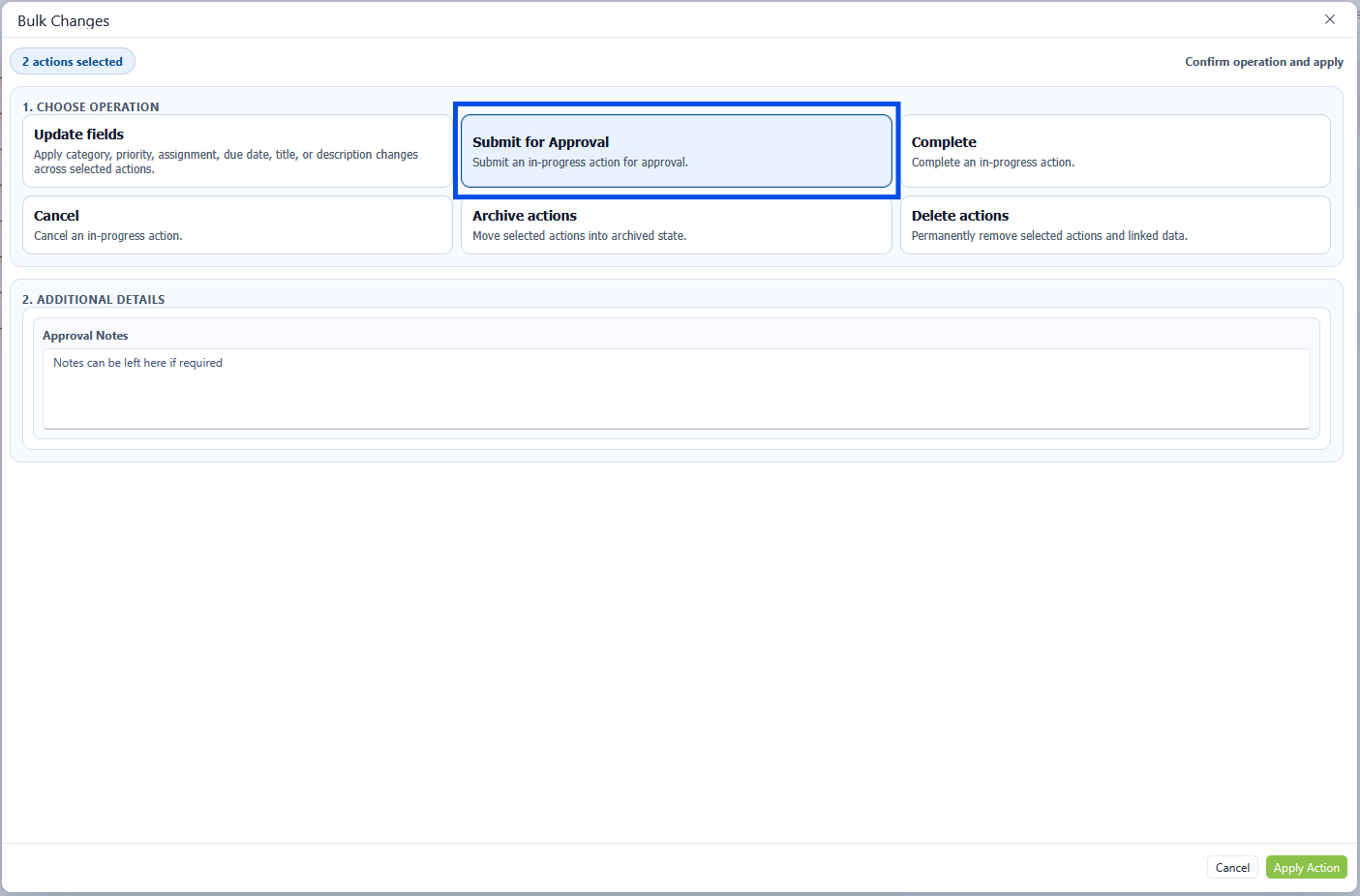
Bulk Actions - Submit for Approval
Bulk Actions - Complete
Multiple actions can be updated to the Complete status in the bulk actions screen. Select the Complete icon in the upper section. The lower grid will allow additional details to be added in the form of notes as required. If there are linked surveys and you would like these to be marked as removed, then check the Linked Survey Record checkbox. Once all relevant notes are applied, click the Apply Action button to save the changes.
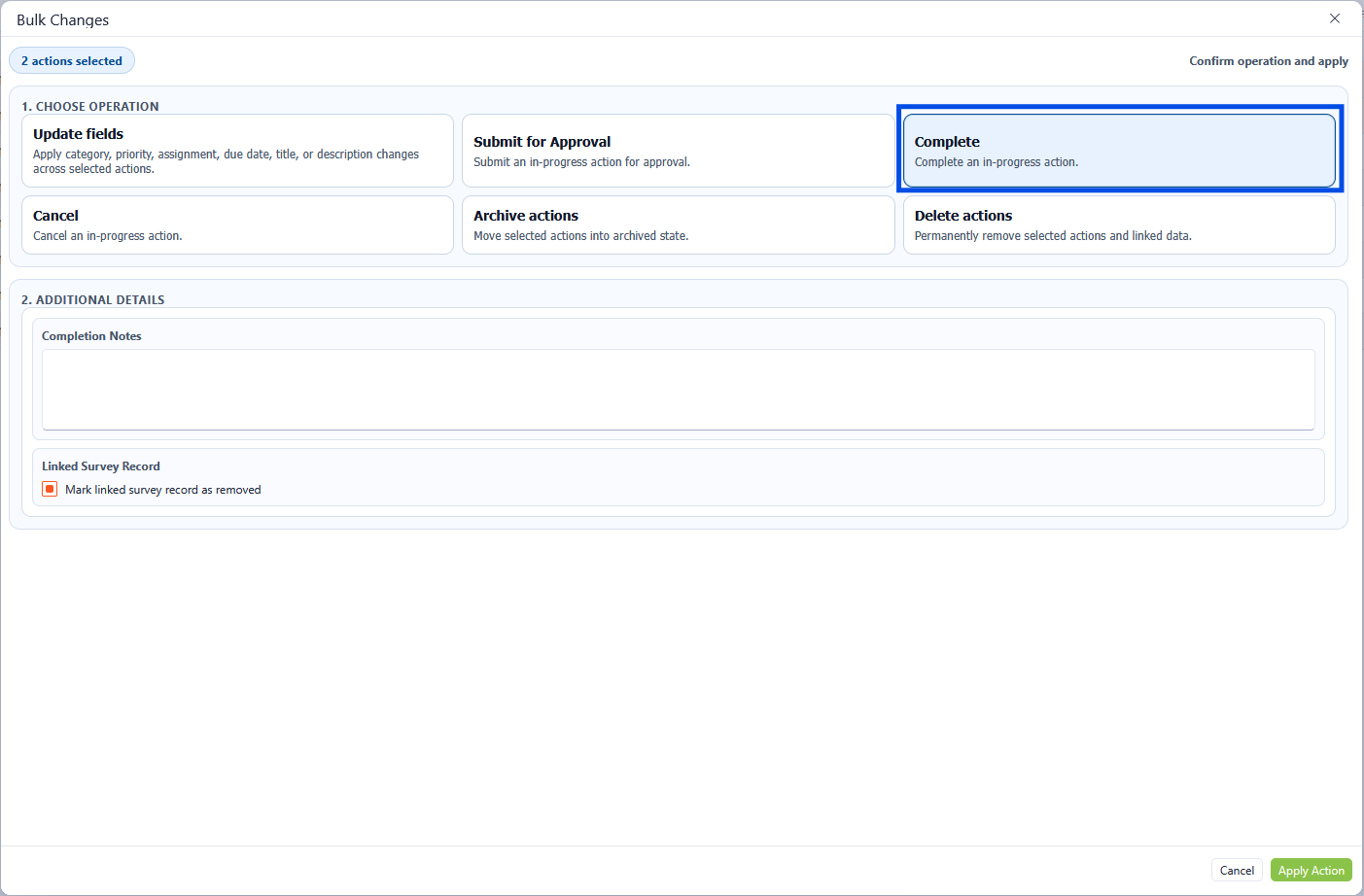
Bulk Actions - Complete
Bulk Actions - Cancel
Multiple actions can be updated to the Cancelled status in the bulk actions screen. Select the Cancel icon in the upper section. The lower grid will allow additional details to be added in the form of notes; this is a required field and is marked with an asterisk(*). Once all relevant notes are applied, click the Apply Action button to save the changes.
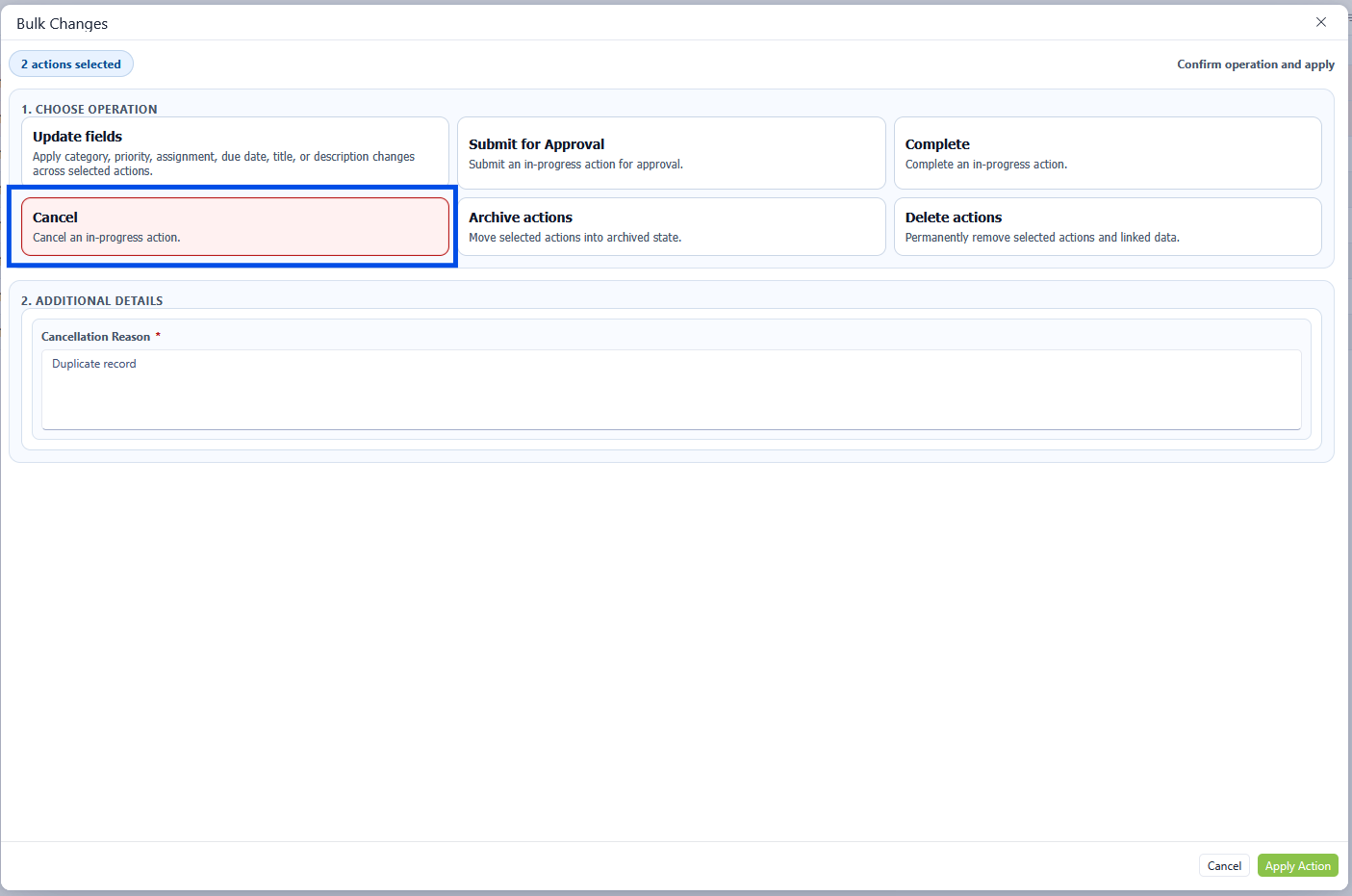
Bulk Actions - Cancel
Bulk Actions - Archive
Multiple actions can be updated to the Cancelled status in the bulk actions screen. Select the Cancel icon in the upper section. There are no additional steps when archiving an action, therefore click the Apply Action button to save the changes.
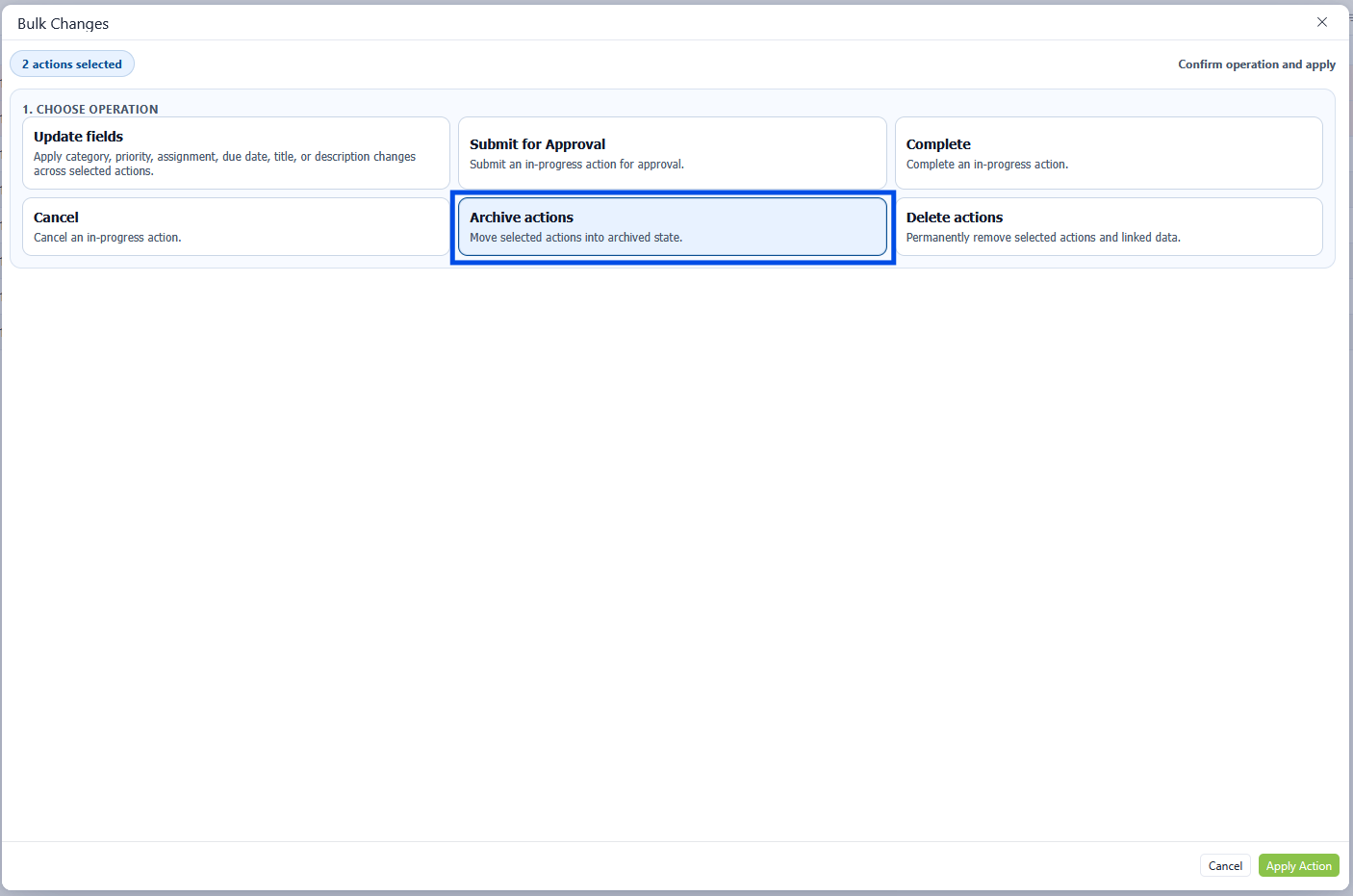
Bulk Actions - Archive
Bulk Actions - Delete
Multiple actions can be Deleted in the bulk actions screen. Select the Delete Actions icon in the upper section. There are no additional steps when deleting an action, therefore click the Apply Action button to save the changes.

Delete is permanent and will remove linked data based on archive rules.
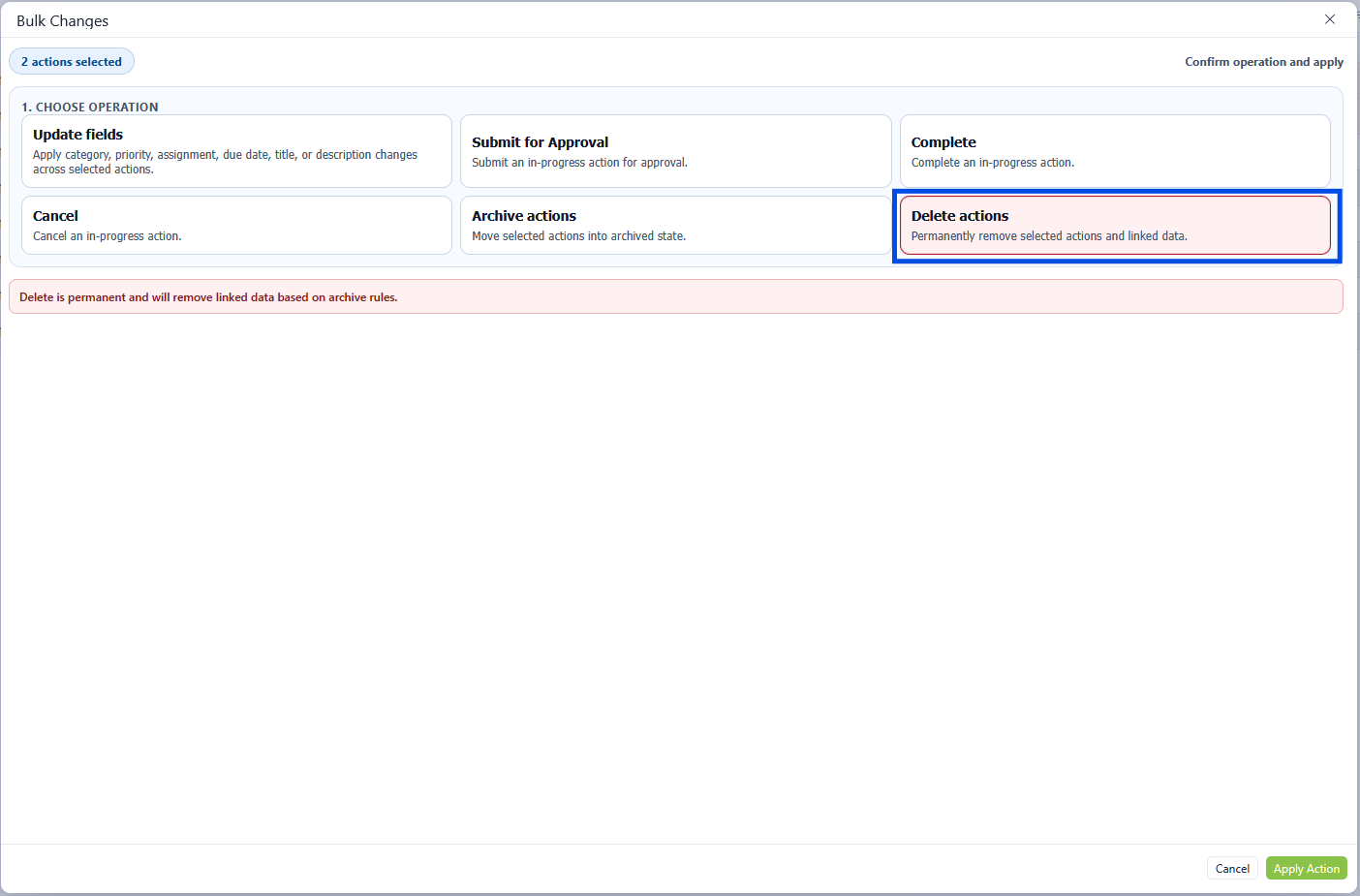
Bulk Actions - Delete